By the end of this guide you will be able to:
- Create a Tax Value
- Update the VAT value against specific F&B items
- Update the VAT for specific sales groups
Create a Tax Value
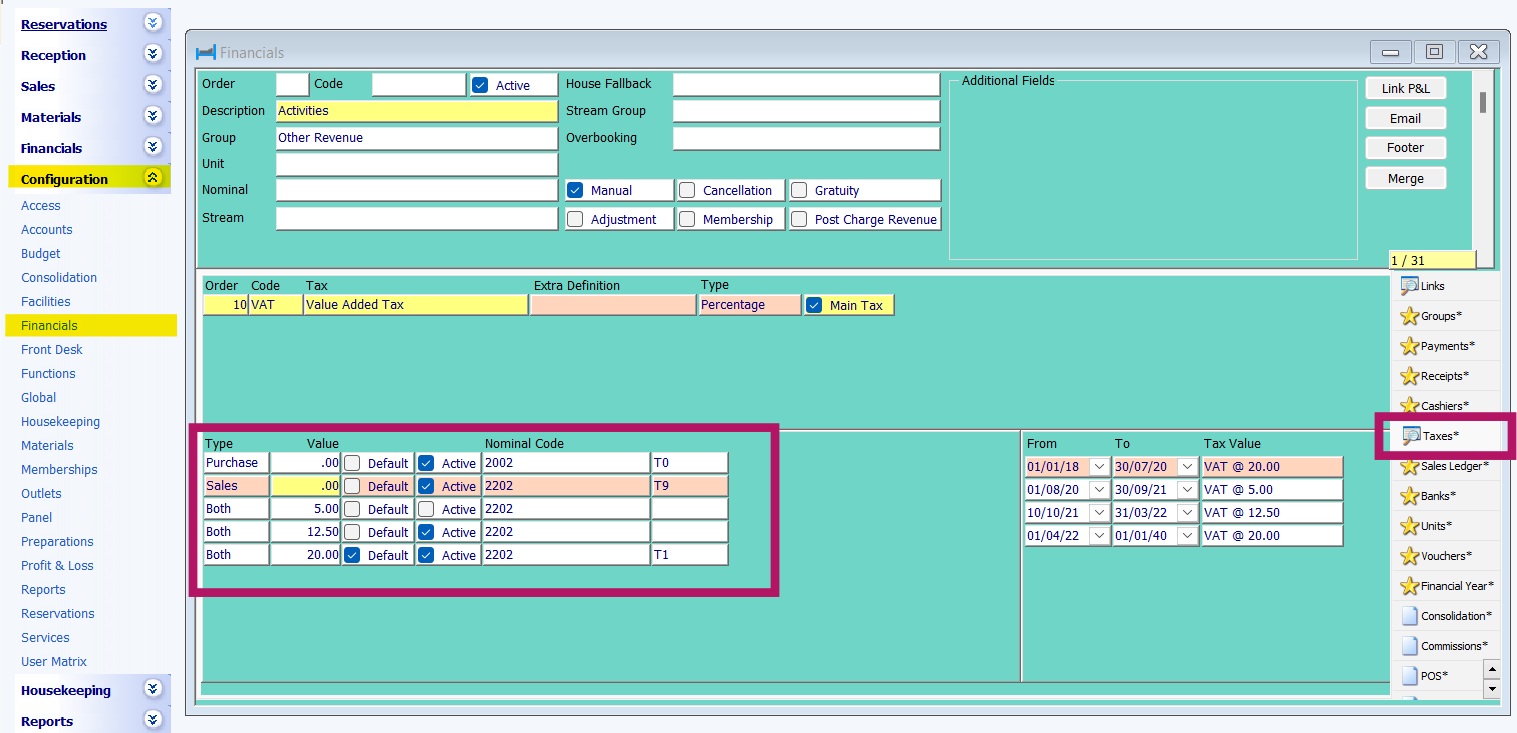
Configuration > Financials > Taxes holds the tax values available within the area marked below. A new value can be created via a right mouse click and Add Entry. Nominal and other codes (e.g. T9) can be added where financial integrations with Sage, Xero or Business Central exist
Update the VAT value against specific F&B items
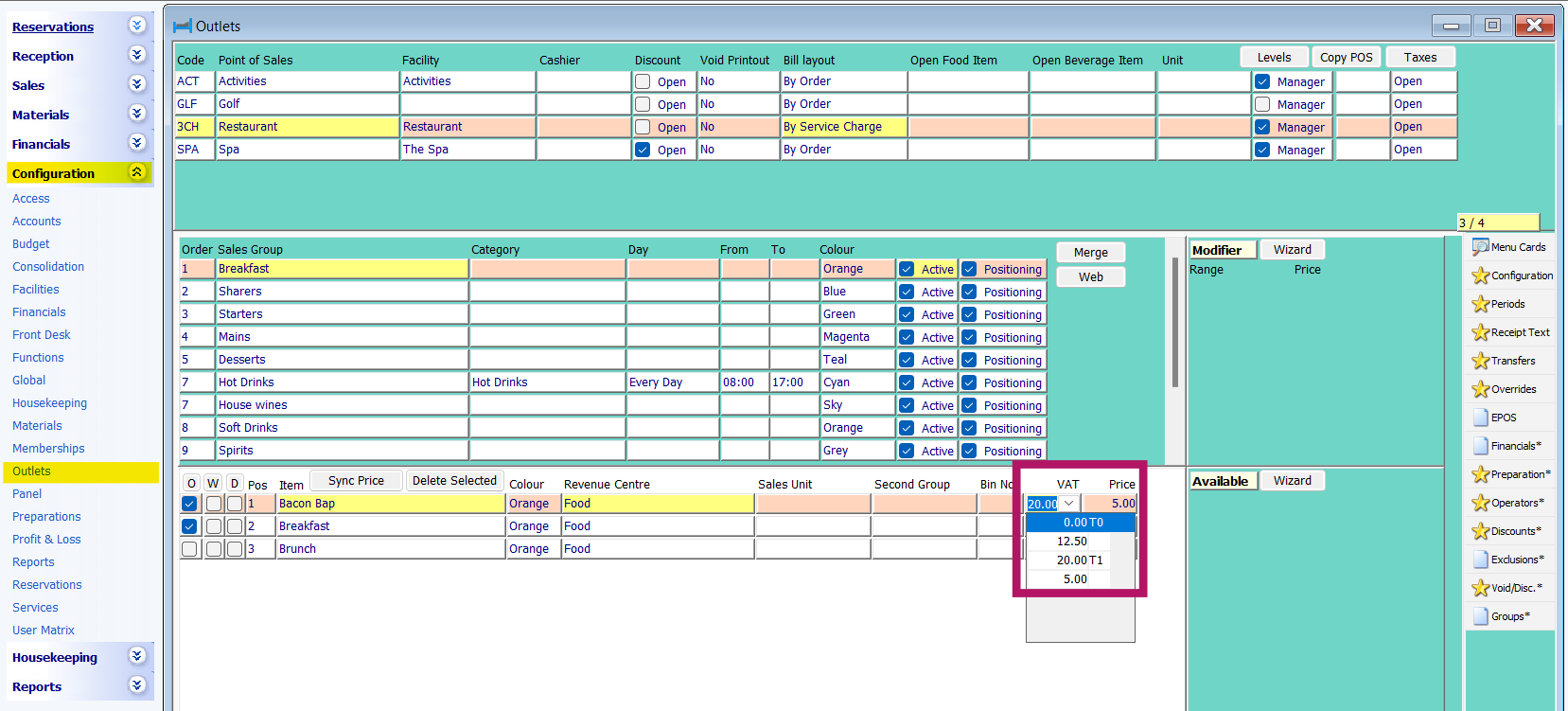
In a scenario where only a few items require a VAT update or those items exist within a mixed menu card where some items will remain at the current VAT level whilst others will be updated, then updates should be made via Configuration > Outlets > Menu Cards and the new VAT rate to be applied, applied per item in the VAT column
Update the VAT for specific sales groups
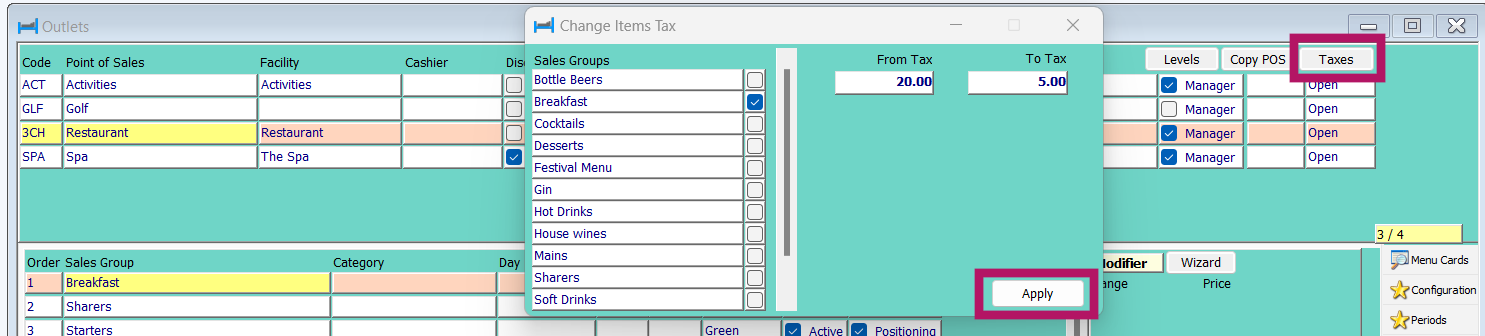
Where larger changes are required across entire sales groups, the Tax update wizard can be utilised. Via Configuration > Outlets the Taxes button should be pressed. Sales Groups can then be selected from the left hand side and the tax from and to rates both selected. Using the example below when the Apply button is pressed HART will locate any item in the Breakfast sales group across all outlets and update the VAT from 20% to 5%
PLEASE NOTE: TYPICALLY THESE CHANGES ARE DATE SENSITIVE. IT IS NOT POSSIBLE TO SCHEDULE THESE CHANGES TO TAKE PLACE AND UPDATES MUST BE MADE ON THE DAY REQUIRED BEFORE THE START OF SERVICE
Was this article helpful?
That’s Great!
Thank you for your feedback
Sorry! We couldn't be helpful
Thank you for your feedback
Feedback sent
We appreciate your effort and will try to fix the article