Function and Event Sheet Templates allow you to pre-configure meeting types, events, notes and activities. When creating a new function, the selected template can automatically populate the event schedule, helping to reduce manual input and ensure consistency across similar bookings.
Templates can still be edited within the function after they have been applied.
Before you begin
Before creating an Event Sheet Template, ensure your Function Rooms have already been configured.
If they have not, please refer to the How to Configure Function Rooms guide.
In this guide, your will learn how to:
- Create a Meeting Type.
- Create Event Types.
- Add Event Notes.
- Link Events to a Meeting Type.
- Add Activities to the Template.
- Apply the Template to a Function.
Create a Meeting Type
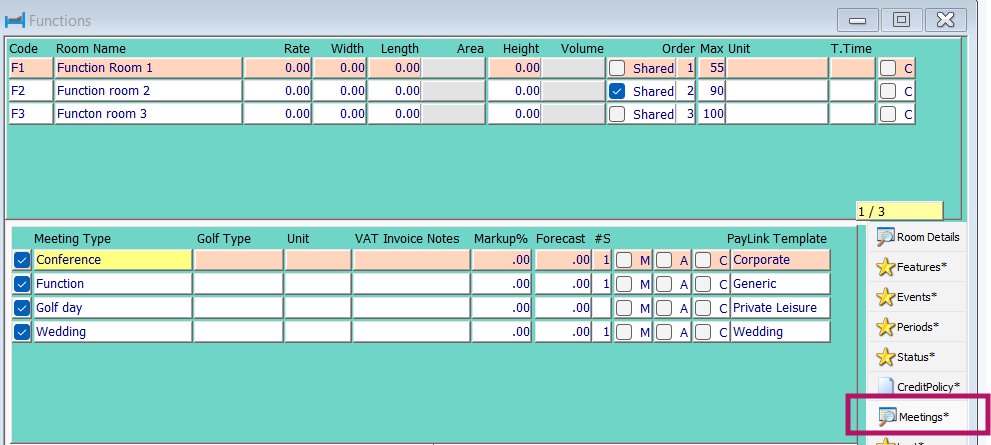
Navigate to: Configuration> Function > Meeting
Right-click in the meeting tab add entry. Complete the following fields:
| Meeting Type | Enter a name for the meeting type (for example, Conference, Wedding or Golf Day). |
| Golf Type | Select the golf booking type if applicable. This is used for golf events. |
| Unit | Select the hotel unit, if applicable. |
| Markup % | Enter a markup percentage to display additional charges on the Pro Forma. |
| M | Include this meeting type in Management Statistics. |
| A | Display the Agent Address on the contract. |
| C | Display the Company Address on the contract. |
| Paylink Template | Select the payment link template to be used for this meeting type. |
| Note: All other fields are currently under development and should be left unchanged. |
Creating Events Types
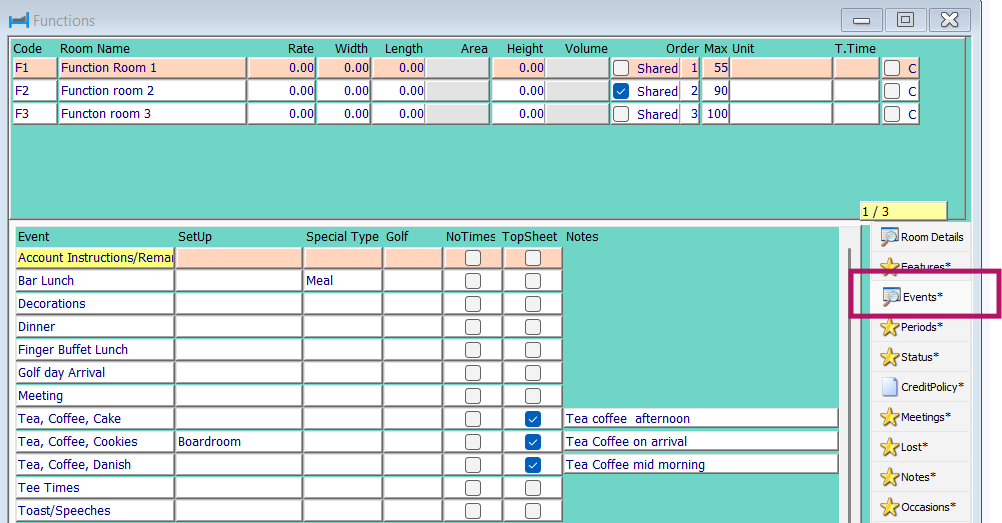
Select the Events tab > Right Click > Add Entry
| Event | Enter the event name. This appears in the Type field of the Events window within the function. |
| Setup | Select the seating or room setup from the drop-down list. Leave this blank when no setup is required. |
| Special Type | Select Meal when users should be able to select a pre-configured menu for the event. |
| Golf | For a golf event, select either 9 or 18 holes. This enables tee times to be booked from the Event window. |
| No Times | Tick this option when the event does not require a scheduled time, for example Account Instructions. |
| Top Sheet | Tick this option to include the event arrangements on the Top Sheet report. This report is available from Reports > Sales > Function Business > Top Sheet. |
| Notes | Enter any default notes that should appear in the Event window. |
Link Events to the Meeting Type
- Return to the Meeting tab.
- Highlight the meeting type that the events should be linked to.
- In the lower event section, right-click and add an entry.
- Select the required event from the drop-down list.
- Enter default start and finish times where appropriate, or leave these fields blank.
The Next Day option adds the event to the following day. We recommend leaving this unticked unless the event must always continue into the next day, as users are also asked about this when creating a function.
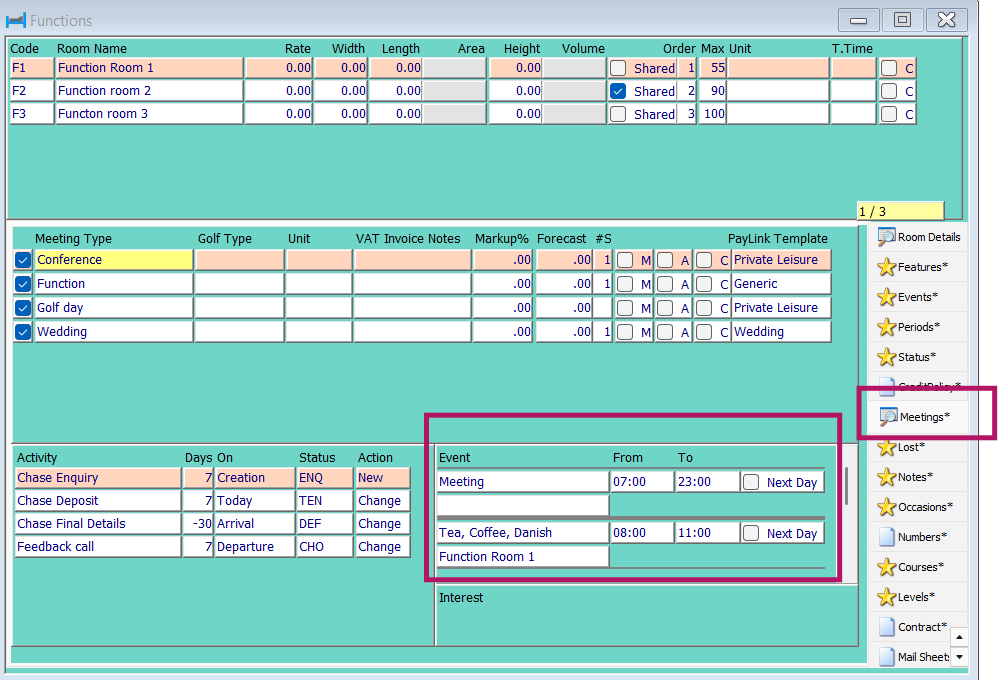
| Note : You can add an event to more than one meeting type. |
HART also enables you to create activities linked to your event template. Activities allow you to manage tasks such as chasing contracts, and carrying out courtesy calls for your sales leads.
For information on How to Create Activities please see the relevant information guide
Add your activities to your meeting.
Once you have created all your activities, you are able to link these to event templates. This will save time when creating a new function as all your follow-up actions will automatically drop in.
Go to Configurations > Functions and the Meeting tab on the right-hand side. Highlight the meeting type that you wish to add activities to in the top window. Then in the activity window choose your activity from the drop-down box by right-clicking and adding an entry.
Free type the number of days, and choose from the drop-down box when the status and action for the activity will be due from the drop-down box.
For the below example.
- Chase final details: will show 30 days prior to the arrival day when the status has changed to a definite status.
- Chase Enquiry: will display 1 day after the function has been created if the status was tentative.
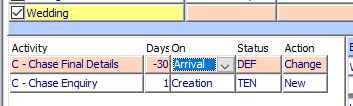
| Note: when setting up activities in this way always run a test function booking to ensure that the activities are showing as you need them to. |
Press F3 or save and the template is completed.
Was this article helpful?
That’s Great!
Thank you for your feedback
Sorry! We couldn't be helpful
Thank you for your feedback
Feedback sent
We appreciate your effort and will try to fix the article