By the end of this informative article you will be able to:
- Understand what each tab does under configuration functions
- Understand how they are used
This is a walk-through guide, and as such is intended to show you what each tab does, rather than how to set up and use functions.
Go to Configurations>Functions
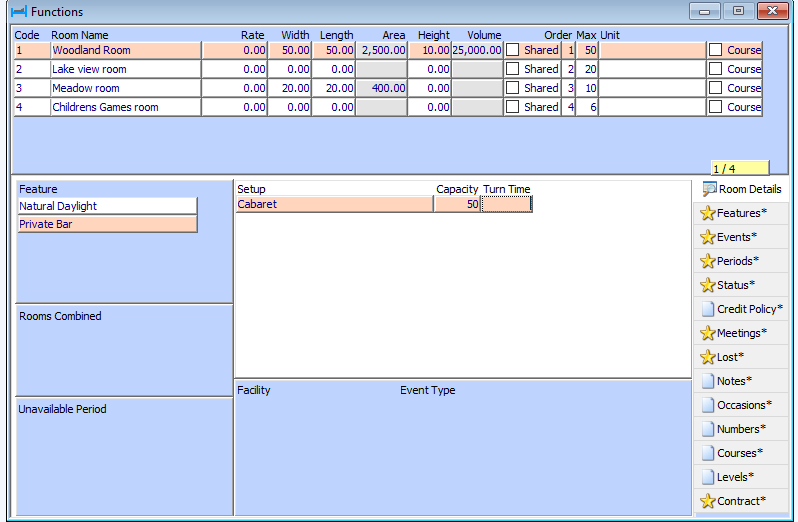
This window appears under Room Details tab.
Functions
This section shows your function rooms details.
- Code: prepopulated by the HART system
- Room name: name of your function room
- Rate: room rate if fixed
- Width: width of the room
- Length: length of the room
- Area: automatically populated by the system
- Height: height of the room
- Volume: automatically populated by the system
- Shared: if the room is a shared room with a facility
- Order: shows the order you wish the rooms to appear in on the function diary
- Max: maximum people for the room
- Unit: shows which unit the room is in.
- Course: if the room is relating to a course
Dimensions are only shown here for information purposes
- Features: This section shows you the features relating to your function room. Configured under the Features tab
- Room combined: This section shows you if the function room is combined with another function room
- Unavailable period: This section allows you to create and show if the function room is unavailable for a certain period
- Set up: This section shows the set-up capacity for different layouts in each room
- Facility: This section shows if a facility is linked to a function room, so the event will show in the chosen facility booking.
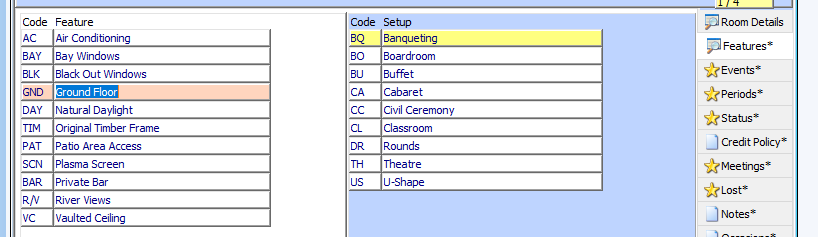
Features
Under this tab you configure your features and seating setups. Right-click to add a new entry.
Events tab
Under this tab, you configure your events that appear in the drop-down box of the events tab in the function booking.
- Setup: this field shows you the seating setup if required. This will automatically populate when choosing this event
- Special Type: this field shows if the event is to be used as an inclusive amount or a golf event
- No Times: this field shows if no time need to be created with this event
- Top Sheet: shows if the event is to appear on the top sheet report. Reports > Sales > Function Business > Top Sheets
- Notes: Any notes for the event are free typed here and automatically drop into the function booking when choosing the event if either configured as a template or if you click add notes in the function booking event field

Periods tab
Under this tab you can see the periods and colours that show on your function diary

Status Tab
Under this tab you can see your status that has been chosen for functions and see the set up for the function conversion report

Credit Policy
Under this tab you can set a credit policy
Meetings
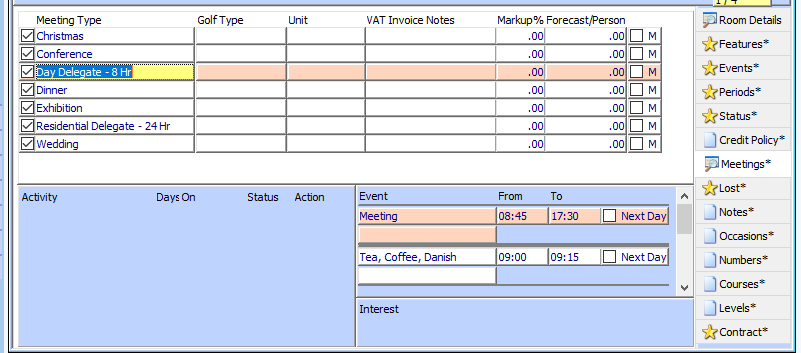
Under this tab you can see your meeting types that have been set up and if any activities or events are configured to be linked to them.
- Meeting Type: name of the meeting
- Golf type: if this is a golf day
- Unit: unit if required
- VAT Invoice notes: if you require additional VAT Notes
- Mark up: if the meeting type has a mark-up % price
- Forecast: person value for forecasting events
- M: shows if the meeting type is linked to the managers’ report
Activity window
This window shows any activities relating to the meeting type, that will be prepopulated when choosing the meeting type in your function booking.
Event window
This window shows the events that have been linked to the meeting type, that will be prepopulated when choosing the meeting type in your function booking, or by clicking add notes in the event window when choosing this event
Interest
This window shows the meeting type interest
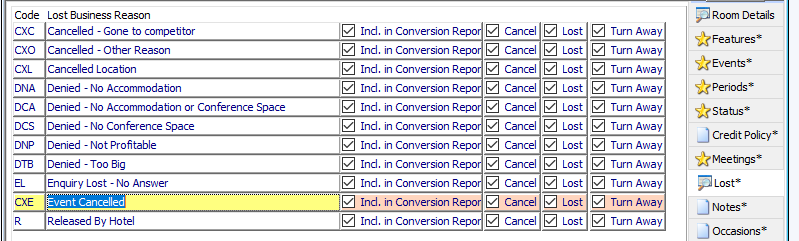
Lost
Under this tab you see all your lost business reasons, if you wish them to be included in the function conversion report and which status it is linked to.
Notes
Under this tab is where you create any notes. These appear in the notes section of the function diary
Occasion
Under this tab, you create and see your occasions, used for the function occasion field
Number
In the function diary, you can view your functions by numbers, this is where you can see and create your number range and colour
Courses tab
under this tab is where you create your courses if you have reoccurring events or use the cookery school booking engine
Levels tab
Under this tab you can create and see your level for use with function matrix and rate plans
For information on how to create function levels click here
Contracts tab
Under this tab you can free type your contract details that show on a function sheet contract
Was this article helpful?
That’s Great!
Thank you for your feedback
Sorry! We couldn't be helpful
Thank you for your feedback
Feedback sent
We appreciate your effort and will try to fix the article