At the end of this article you will be able to create bedroom packages which include:
- Restaurant reservations
- Spa Treatments
- Spa Day packages
- Golf tee times
Additionally this article contains information on the package availability tool. It is recommend that all users initially familiarise themselves with the common practices which go across all packages.
The introduction of the revised Rooms booking engine allows for the pre-checking of package availability before the results are presented to guests. Underpinning this is the package set up detailed below where package elements are linked to outlets and/or services as well as the quantity contained within the package
Common processes to all packages
Navigate to Configurations > Services > Bedrooms
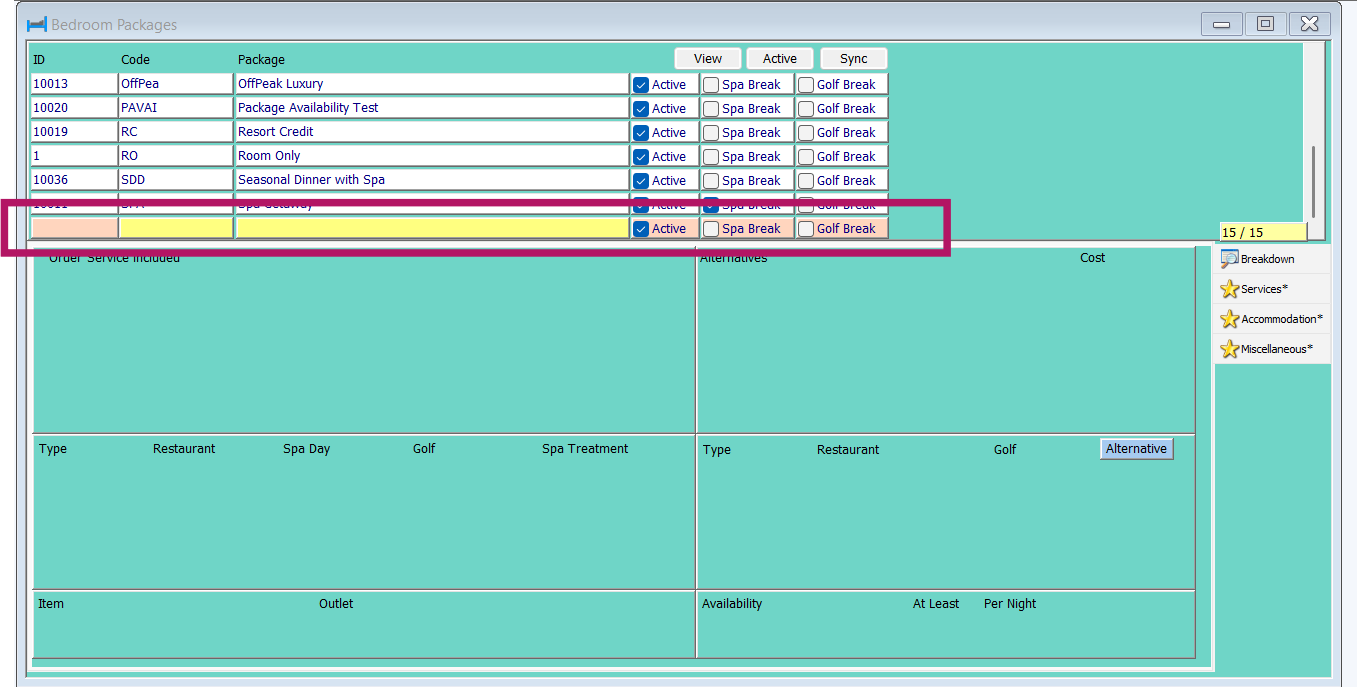
All packages require the creation of a package header. In the top window, right-click and add an entry.
- ID: this field will pre-populate once you have saved your information
- Code: free-type a code for your package. This is for report purposes
- Package: free-type a package name. This appears on bills and printed invoices
- Active: tick the active box to make this active
- Spa break: tick this box to mark the package as a spa inclusive break. This is used for ease of filtering packages in this screen, when pressing the view button
- Golf break: tick this box to mark the package as a golf break. Again this is used for ease of filtering packages in this screen.
Press F3 or the save icon to complete this process
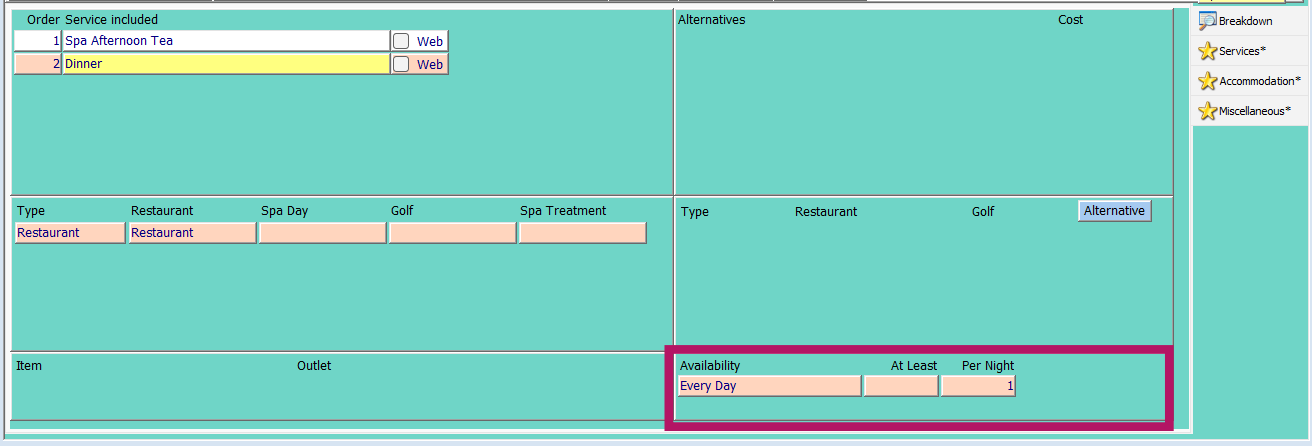
Availability of package elements can be controlled by day of week but also based on an At Least or Per Stay basis. Please note, it is not possible to use both At Least and Per Night against the same service element.
At Least:
- "At Least" a given number of this item must be available during the stay period e.g. in a 3-night stay that includes 1 dinner then 1 would be inserted to the At Least field and positive availability will be based on there being at least 1 dinner available in he 3-nights of stay
Per Night:
- Used in conjunction with the Availability Day field this defines that a certain number of the service must be available each night of the stay. A very common use case is Dinner, Bed & Breakfast packages where 1 dinner must be available per night
Using quantities:
- In the context of
- Restaurants: at least the number of meals inserted - HART will automatically search for availability based on the number of adults involved in the booking process
- Spa Treatments and Spa Says: at least the number of services per person - HART will automatically multiply the number of treatments or spa days by the number of adults involved in the booking process
- Golf: at least these number of tee times - HART will automatically divide the number of adults involved in the booking process by 4 to calculate the number of tee slots required e.g. 6 pax = 2 slots
Configuring Restaurant inclusive package elements
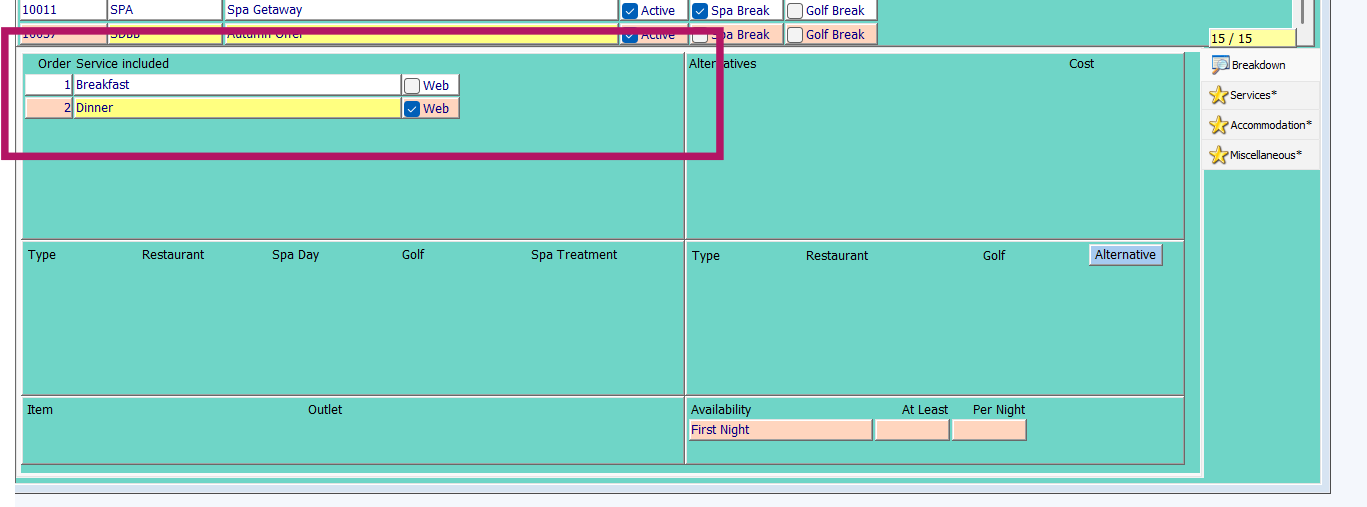
Following the creation of the package header as above, the services contained within the package should be added in the Services Included area via a right mouse click and adding an entry, choosing the services that form the package from the drop-down box.
- Web box: tick this box if you wish the service to be part of the booking procedure online.
- Order: free type the order that you wish the services to appear in the rate a plan.
Press F3 or the save icon to complete this process
NOTE: the service must be the same service that is set in the Restaurant Facility that you wish the guest to book into.
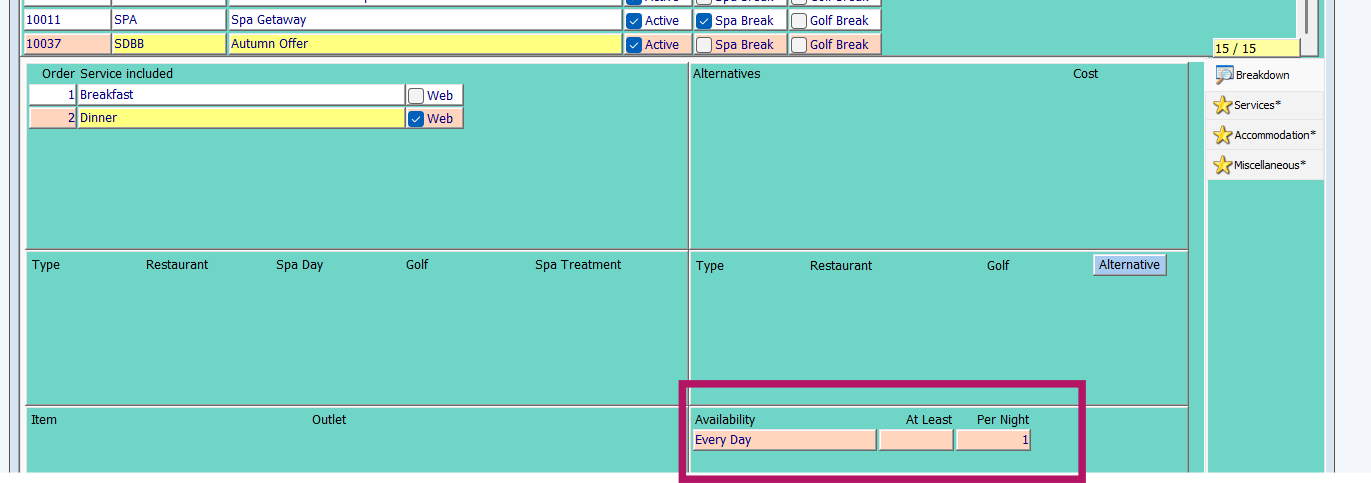
In the bottom right-hand corner, set the service availability. As detailed above:
- At Least means there must be set quantity of meals across the whole stay
- Per Night means that number of meals every night of the stay
The per night option can be used in conjunction with the Availability Day to define dinner must be available on e.g. a Saturday night
NOTE: the day range picked must match with the day range as it will be used in the rate plan. A mis-match will cause the package to be charged incorrectly
Press F3 or the save icon to complete this process
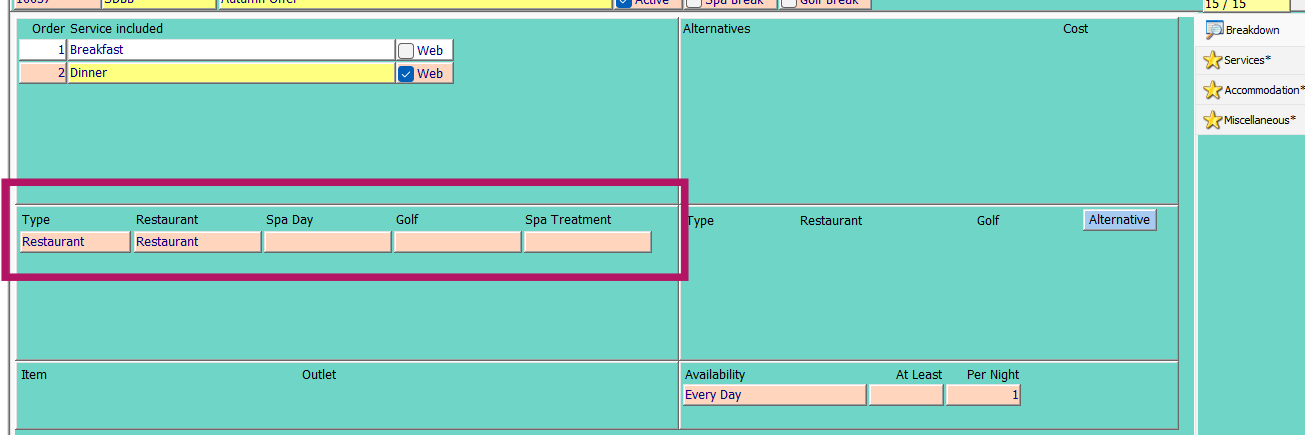
Linking the Restaurant: this step is vital for ensuring the availability of a specific restaurant is checked as part of the package
Right mouse click in the area marked below and select
Type: Restaurant
Restaurant: choose the restaurant included in this element of the package
Press F3 or the save icon to complete this process
Where a package contains multiple dinners in different restaurants then each dinner will require it's own service and link to a restaurant facility. Please note it is possible to have the same service (e.g. Dinner) added to the same package twice and linked to two difference Restaurant facilities
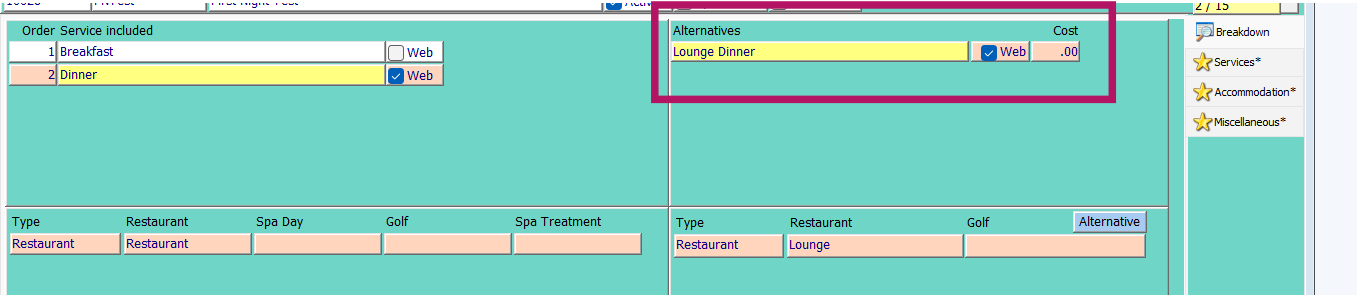
In certain situations it may be that guests have a choice of restaurants they can dine in or a package is inclusive of a dinner in 2 restaurants but it's not important which order they dine in. In this scenario alternatives can be created
Right mouse click in the area marked below and add an entry choosing the service from the drop-down box.
NOTE: Again the service must match the service in the restaurant you are linking this to.
Web box: tick this box to ensure the booking can be part of the online process
Cost field: functionality will be added here at a later date
Press F3 or the save icon to complete this process
Directly under the alternatives window add in the restaurant that this alternative is linked to:
Type: Restaurant
Restaurant: choose the alternative restaurant included in this element of the package
Press F3 or the save icon to complete this process
Once complete this package is ready to be attached to a Rooms Rate Plan a full guide on which is available here for seasonal rate plans and here for daily rate plans
Configuring Spa Treatment inclusive package elements
Having followed the common process above to create the package header this part of the guide takes over from the addition of the spa treatments connected to the rate plan
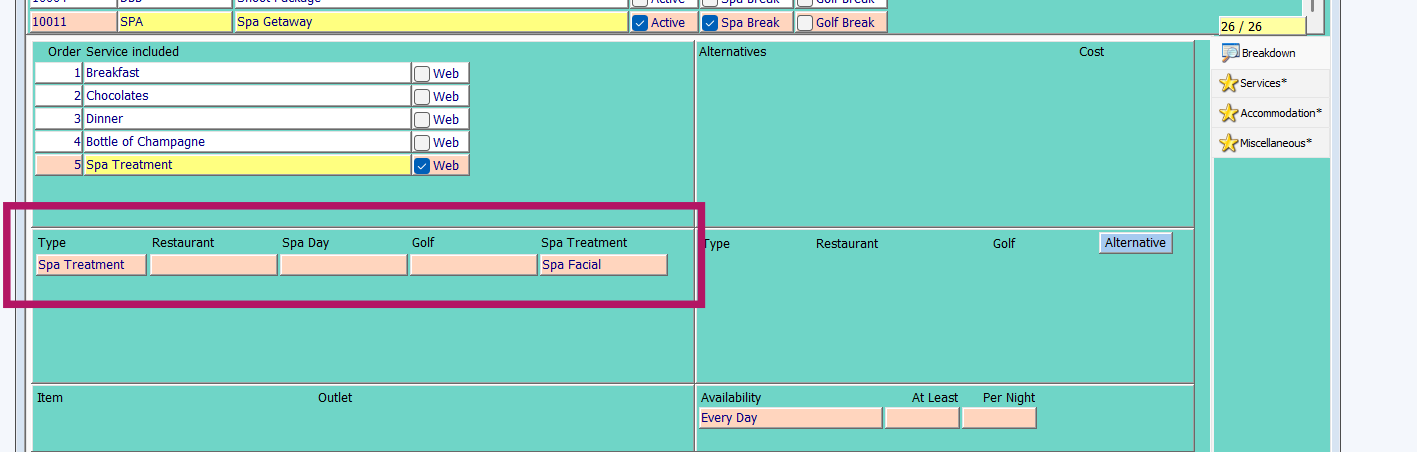
Having added a generic service to the package e.g. 'Spa Treatment' in the package type area, right mouse click and add entry choosing:
Type: Spa Treatment
Spa treatment: link the primary treatment included in this element of the package
This is vital to ensure that availability for the specific service is searched for when reporting package availability.
Press F3 or the save icon to complete this process
Where a package contains multiple spa treatments then each treatment will require it's own service and link to a service. Please note it is possible to have the same service (e.g. Spa Treatment) added to the same package twice and linked to two difference services facilities
In the bottom right-hand corner, set the service availability. As detailed above:
- At Least means there must be set quantity of treatments across the whole stay
- Per Night means that number of treatments every night of the stay
The per night option can be used in conjunction with the Availability Day to define treatments must be available on e.g. a Saturday night. The exact timings of when treatments can be taken e.g. on the day of arrival is defined later as part of the package configuration on HART Engines.
The availability set here is based on a per person basis and the total number of treatments required will be multiplied by the number of adults attached to the room reservation
NOTE: the day range picked must match with the day range as it will be used in the rate plan. A mis-match will cause the package to be charged incorrectly
Press F3 or the save icon to complete this process
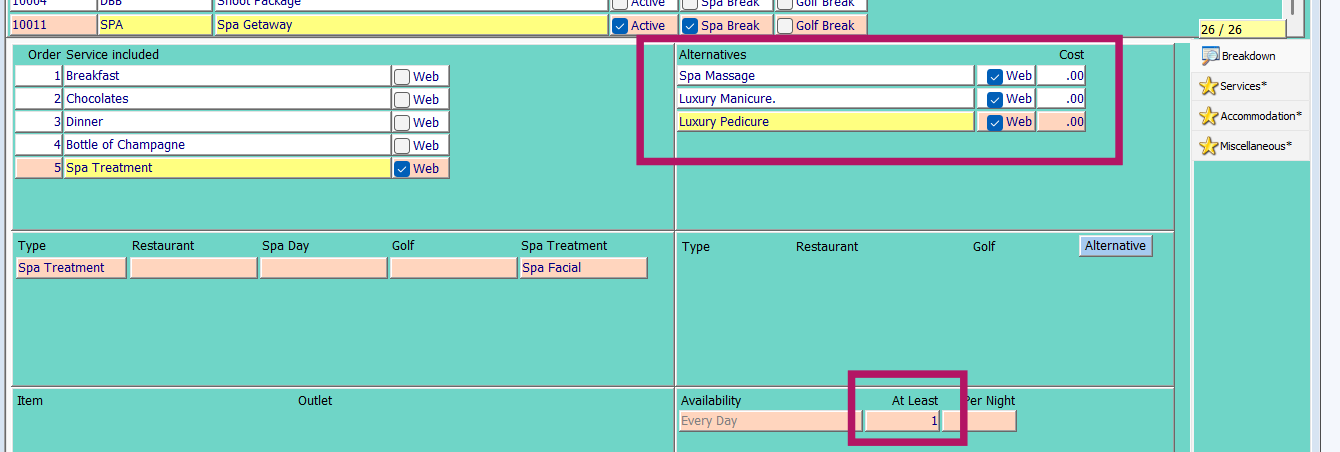
Where there is a choice of treatments that can be booked as part of the package then alternatives can be created.
Right mouse click in the area marked below and add an entry choosing the service from the drop-down box.
Web box: tick this box to ensure the booking can be part of the online process
Cost field: functionality will be added here at a later date
Press F3 or the save icon to complete this process
NOTE: The revenue assigned for the treatment will form part of the rate plan set up, therefore it is required that zero-priced treatments are created where included in bedroom packages.
Once complete this package is ready to be attached to a Rooms Rate Plan a full guide on which is available here for seasonal rate plans and here for daily rate plans
Configuring Spa Day inclusive package elements
Prior to adding a spa day to a bedroom package the spa day package must created initially along with a spa day rate plan. Please note existing spa days and rate plans can be used and if they have a price then these will automatically be set to £0 when booked as part of the room package as the ate and revenue forms part of the bedroom package. A guide on creating spa day packages and rate plans is available here.
Having added a generic service to the package e.g. 'Spa Day' in the package type area, right mouse click and add entry choosing:
Type: Spa Day
Spa Day: link the Spa Day included in this element of the package
This is vital to ensure that availability for the specific spa day is searched for when reporting package availability.
Press F3 or the save icon to complete this process
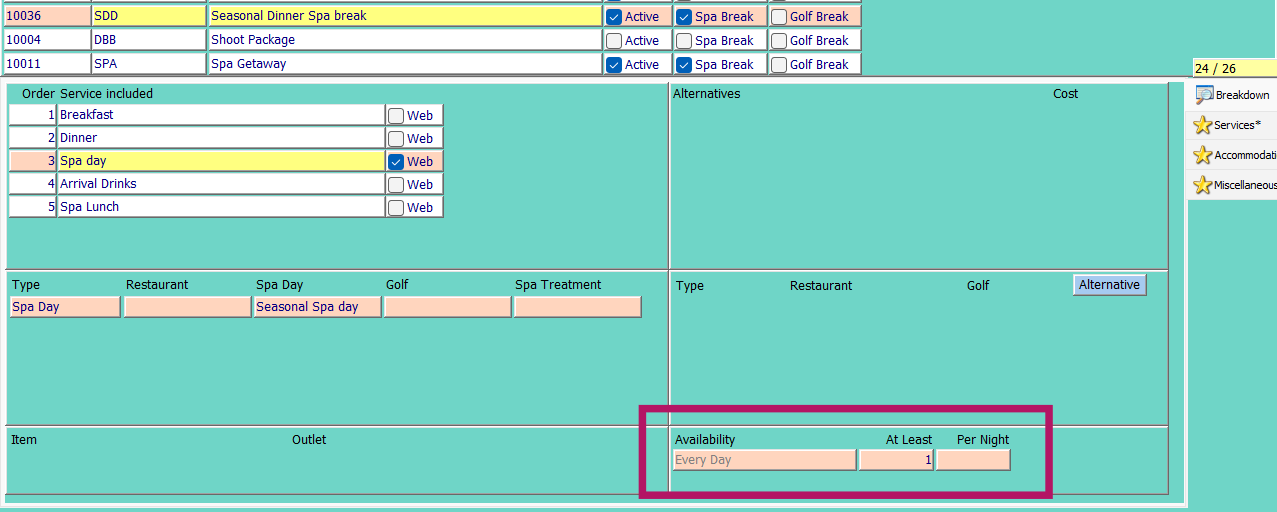
In the bottom right-hand corner, set the service availability. As detailed above:
- At Least means there must be set quantity of spa days across the whole stay
- Per Night means that number of spa days every night of the stay
The per night option can be used in conjunction with the Availability Day to define spa days must be available on e.g. a Saturday night. The exact timings of when spa days can be taken e.g. on the day of arrival is defined later as part of the package configuration on HART Engines.
The availability set here is based on a per person basis and the total number of spa days required will be multiplied by the number of adults attached to the room reservation
NOTE: the day range picked must match with the day range as it will be used in the rate plan. A mis-match will cause the package to be charged incorrectly
Press F3 or the save icon to complete this process
Alternatives can not be used in conjunction with spa days and only one package can be included
NOTE: The revenue assigned for the spa day will form part of the rate plan set up. If an existing spa day package and rate plan are being used then the price will automatically be updated to £0 on booking.
Once complete this package is ready to be attached to a Rooms Rate Plan a full guide on which is available here for seasonal rate plans and here for daily rate plans
Configuring Golf inclusive package inclusive elements
Having followed the common process above to create the package header this part of the guide takes over from the addition of the golf elements connected to the rate plan
Having added a generic service to the package e.g. 'Tee Times' in the package type area, right mouse click and add entry choosing:
Type: Golf
Golf: link the primary golf course included in this element of the package
NOTE: multiple services must be added if multiple rounds are included within the package at different rates and/or on multiple nights. Likewise multiple services must be added where green fees are charged a different rates depending on the day of the week. For instance if a green fee of £50 per person applied Monday - Friday on the 'Lakes' course and £70 per person on Saturday & Sunday then the service must exist twice with the Availability area used to define the difference between the charging.
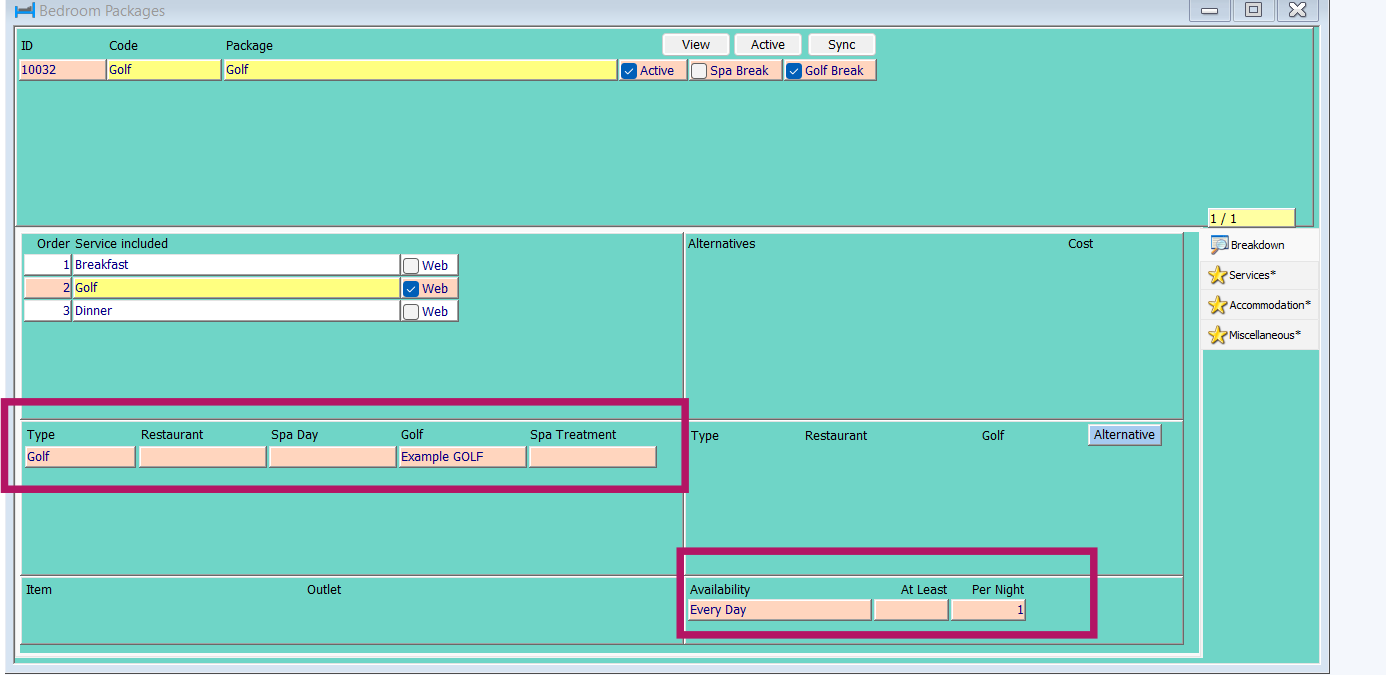
In the bottom right-hand corner, set the service availability. As detailed above:
- At Least means there must be set quantity of tee times across the whole stay
- Per Night means that number of tee times every night of the stay
The per night option can be used in conjunction with the Availability Day to define when tee times must be available on e.g. a Saturday. The exact timings of when tee times can be booked e.g. on the day of arrival is defined later as part of the package configuration on HART Engines.
The availability set here is based on the number of rounds included. HART will automatically calculate the number of tee slots required by taking the total number of adults and dividing it by 4 i.e. each tee time slot is a 4-ball.
NOTE: the day range picked must match with the day range as it will be used in the rate plan. A mis-match will cause the package to be charged incorrectly
Press F3 or the save icon to complete this process
Where more than a single course can be booked as part of the package then alternatives can be created.
Right mouse click in the area marked below and add an entry choosing the service from the drop-down box.
Web box: tick this box to ensure the booking can be part of the online process
Cost field: functionality will be added here at a later date
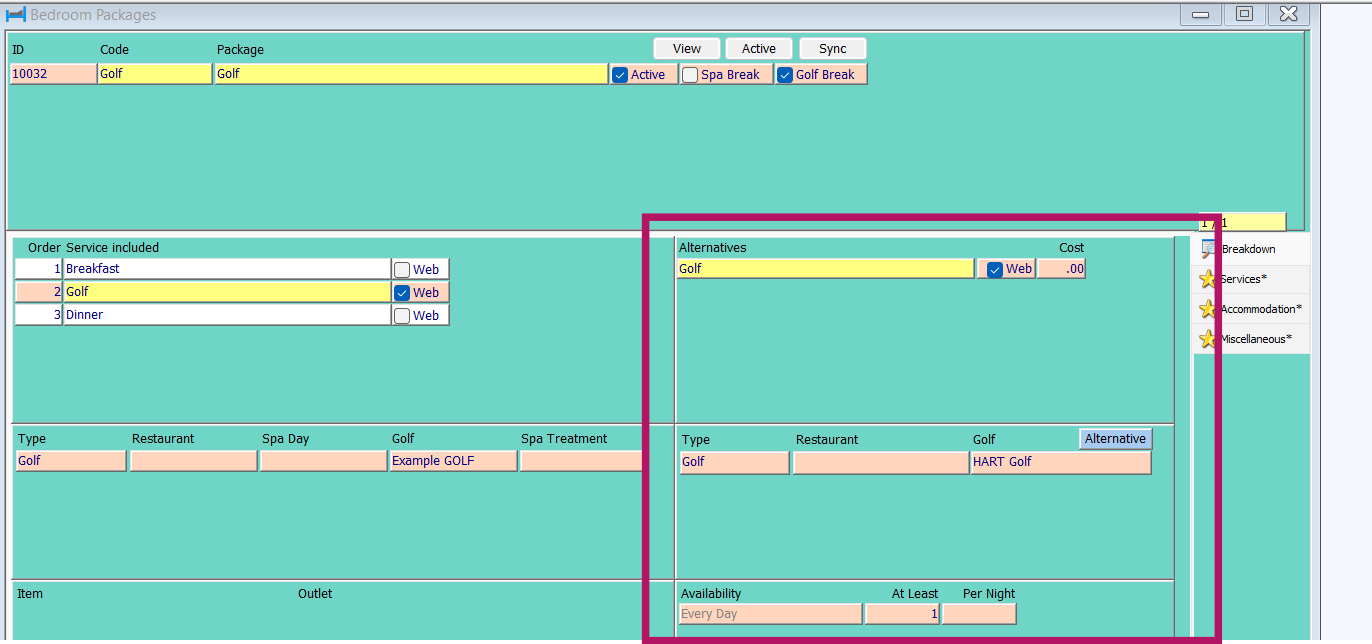
Press F3 or the save icon to complete this process
Once complete this package is ready to be attached to a Rooms Rate Plan a full guide on which is available here for seasonal rate plans and here for daily rate plans
Package Availability reporting
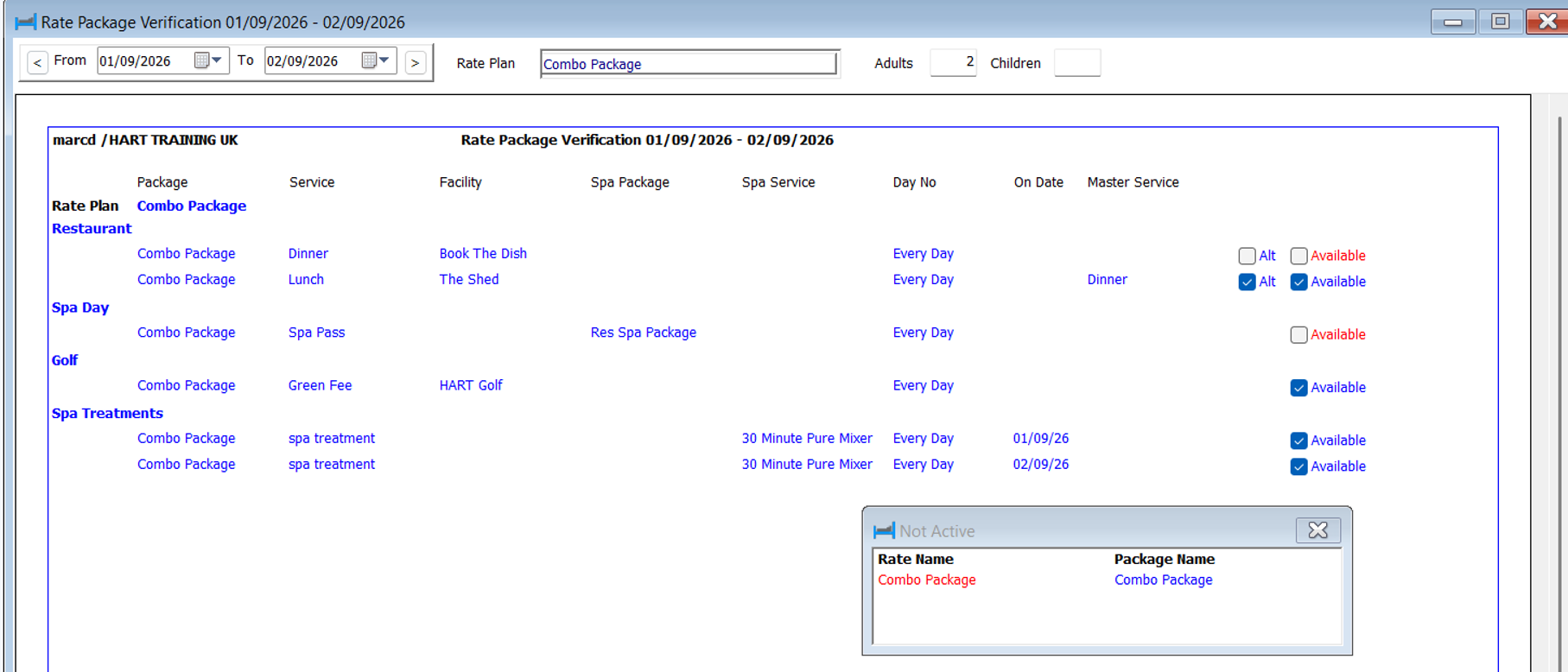
Reports > Sales > Rate Package Verifiaction
This report is a useful tool to show why a package availability on certain dates. Prior to using the tool, general room availability should be checked. Additionally check for any restrictions (via Sales > Restrictions) that may block either hotel or rate plan availability. Finally ensure that a rate level and/or price for the day and room type exist.
To use the report input the desired dates of stay and select the target rate plan from the drop down list. Please note inactive rate plans will appear in red. Finally input the target number of adults and children

The results will show the elements of the package and whether they are available or not. If either the rate plan or package is not active this will be displayed in a pop out field
Was this article helpful?
That’s Great!
Thank you for your feedback
Sorry! We couldn't be helpful
Thank you for your feedback
Feedback sent
We appreciate your effort and will try to fix the article