This article walks through the process of apply Rate Changes to Room Reservations.
Rate Changes are predominantly used to change the rate during a single stay - for instance the guest is joining you on Bed & Breakfast on their first night and changing to Dinner, Bed & Breakfast for their second. Utilising the Rate Change feature avoids the need to create separate reservations. The Rate Change feature is very versatile and can be used in a number of situations.
Applying a Rate Change
Rate Changes can be applied from the second night onwards. Once a Rate Change has been started then a rate change should be in place for the whole term of the stay even where the rate is reverting back to the first night.
Once a reservation has been created inside the Rate Change tab right mouse click and Add Entry to start creating the next rate:
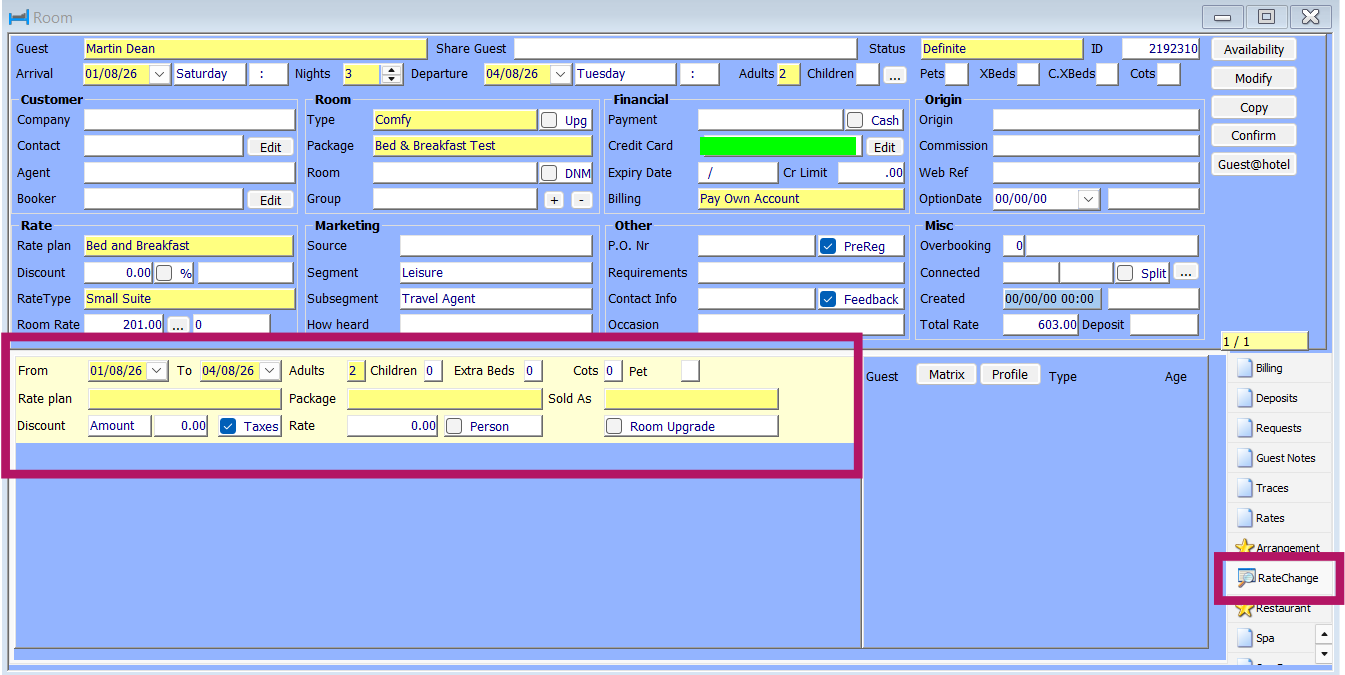
By default the arrival and departure dates of the reservation will be selected. These should be changed to the nights that a rate change should be applied.
Please note at this juncture it is also possible to update the occupancy of the room and select the same rate. This is useful for e.g. shoulder nights of conferences where a partner may be joining a delegate and extending their stay. Additionally where the guest is staying on the same rate but moving between room categories this feature can be paired with room splits.
Double click in the Rate Plan field to select the new rate that should be applied to the reservation in the normal way. Once complete press okay and the rate change will be in place
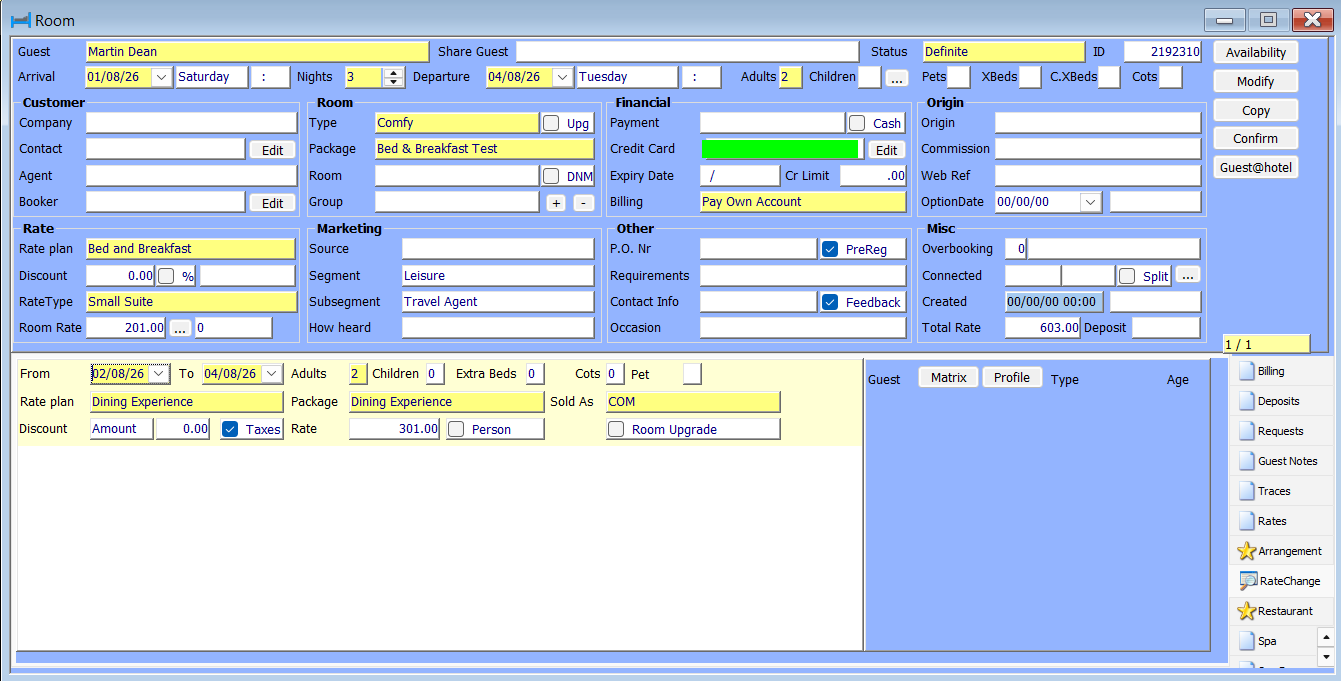
In the above example the guest is on a Bed & Breakfast rate for their first night and then Dining Experience rate for nights two & three.
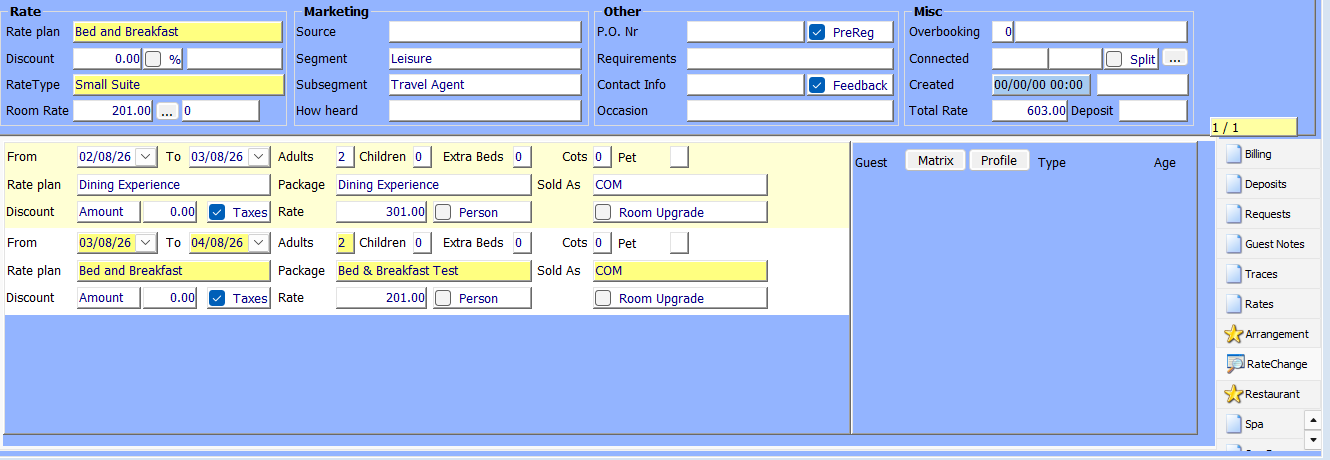
If the reservation needed to reflect Bed & Breakfast for nights one and three and the Dining Experience package for night two, the set up would follow this structure:
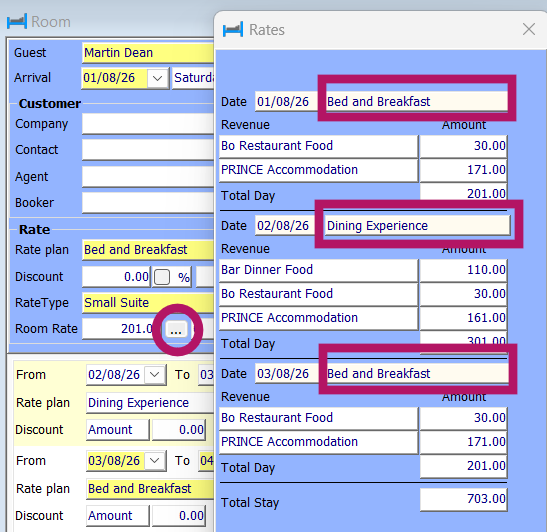
As a cross check to ensure the rate change has been applied to the desired rates click the three-dots button next to the Room Rate field:
Was this article helpful?
That’s Great!
Thank you for your feedback
Sorry! We couldn't be helpful
Thank you for your feedback
Feedback sent
We appreciate your effort and will try to fix the article