This guide explains how to manage rates within a group booking, including changing group rates, overriding rate plan prices and managing rate changes.
At the end of this article you will be able to:
- Manage rates within a group booking
- Change group rates
- Apply rate changes to a group
- Override rate plan prices
- Manage rooms that should not follow the group rate
This guide assumes that you already know how to create a group booking.
If you need help creating a group, please see our How to Create a Group Booking first.
Recommended Rate Plan Setup
Group rates are easier to manage if your rate plan has separate 1 pax and 2 pax rates configured.
Your rate plan may look something like this:
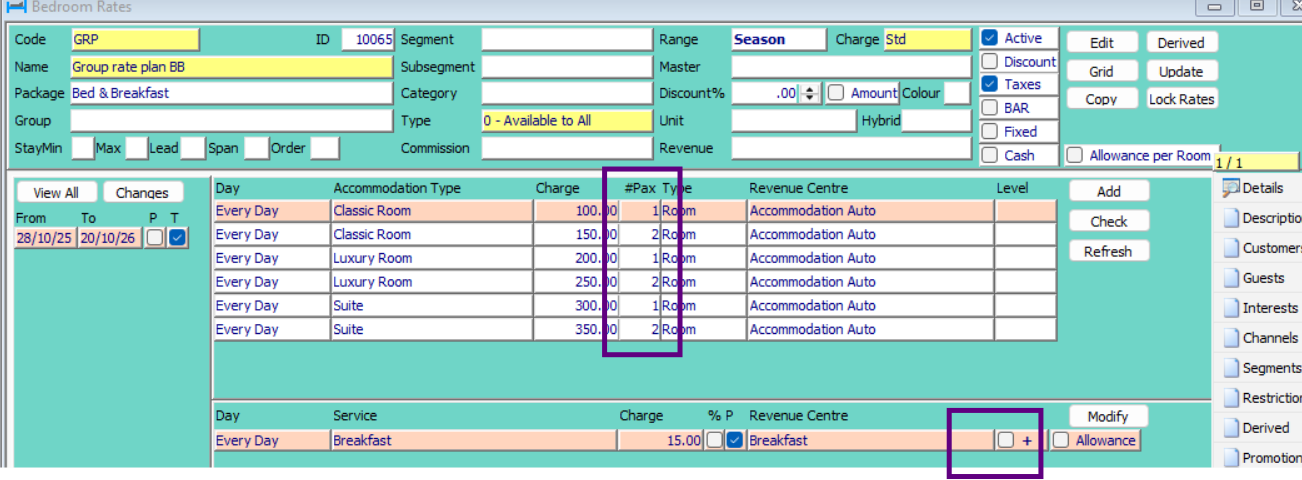
It is also important that a group rate plan does not contain any add-on services.
If you are unsure how your rate plan has been configured, speak to the person responsible for managing your property's rate plans.
How Group Rates Work
When rooms are added to a group, the rate each booking receives is determined by its Sold As Room Type.
For Example:
Classic room - sold as - Classic room type rate
Luxury Room - sold as - Classic room type rate
Suite - sold as - Luxury room type rate.

This means that although the guest may be staying in a Luxury Room, if the room is Sold As Classic, it will use the Classic rate.
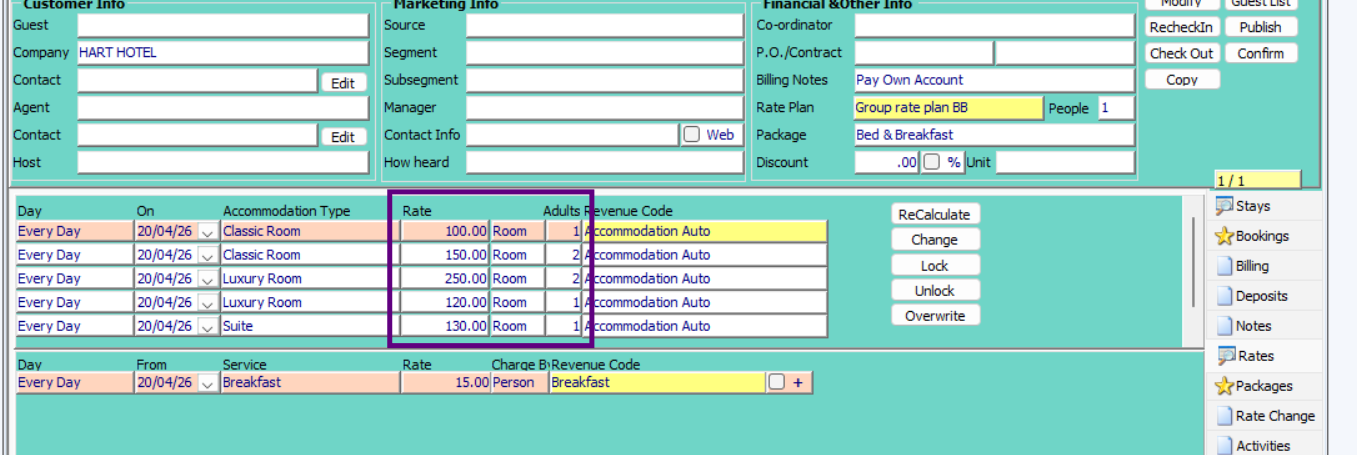
These are the rates that the bookings will follow accordingly to the 'sold as room type's rates and the number of adults.
Note We have 1 and 2 pax rates drop in as per our rate plan., if you are using a rate plan that doesn't have pax number you need to manually add these in the rate tab of you group regardless of the number of Pax in the individual rooms.
For example our Classic room for 1 pax is sold as a Classic room type and the price is 100.00
Our Luxury room type for 2 pax is being sold as a Classic room type and the price is 150
Our Suite room for 1 pax is being sold as a Luxury room type and the price is 120

The rates here under the rate tab can be overtyped if you need them to be a different price rather than the rate plan prices.
We have changed the below rates.
Press F3 to save
Press the ReCalculate button to recalculate the rates to the individual bookings

The rates on the booking have now changed.

You can also change the rate in the change window by press the change button.
If you have a booking that you wish to be part of the group but not follow the group rates you untick the Sync rate box here.
This room's rate plan and price can now be managed as a standalone booking.

Applying a rate change to a group of rooms.
Under the rate change tab of the main group apply your rate change.
If the rates for the room are the same as the rate plan rates then you do not need to do anything else here.
We do advise that you press the lock rate button to lock the individual room rates. This is found under the rates tab of the group booking.

Overriding the rate plan rate changes prices.
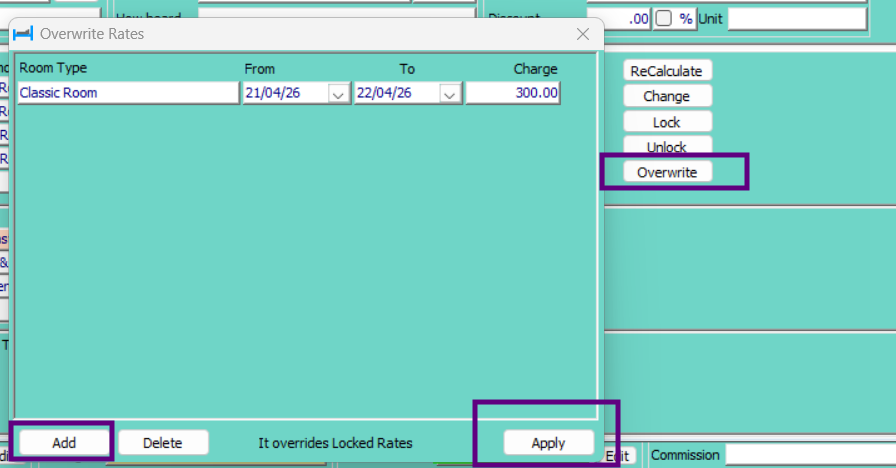
If the rates for your rate change need to be changed you must press the overwrite button and add in your new rates. Remember this is your ' Sold as' room type price.
Press Apply
NOTE
- It is important to know that you can not add a 1 and 2 pax rate here so you need to add your dominant pax rate price.
- For example If you have more 1 pax room than 2 pax room add in the rate for 1 pax.
- The 2 pax rooms will need to be managed as individual bookings within the group if they are a different price to the 1 pax rate, and the rate change price changed using the rate query.
- If the prices are the same regardless of the number of PAX you do not need to do anything else here.
NOTE
- The rates do not drop into the group rate window, currently you are not able to see what rates you set to overwrite except in the individual rooms.
Changes to a room with in the group
If you have a booking that has been added to your group or the rate sync button has been ticked when previously this wasn't and the package is not appearing correctly on the Pro forma, you need to overwrite your group rate change price again then press;
Refresh C : Apply group rate changes will re sets the group rate change price and pulls through the package.
Changing the dates of a sync room with a rate change.
If you change the date of a booking that is synced to follow the group. the rate change applies but will now follow the rate plan prices.
You then have to re apply the overwrite rate plan at group level and press Refresh C
Other points to note
The Re calculate button needs to be pressed when
- Changing billing notes
- Changing a rate plan, you will need to reset your rates
- Changing group rates for the first night.
Note If you press re calculate at any point you must make sure that the rate change rate in the rooms are locked otherwise they will follow the rate plan rates for the rate change not the overwrite prices
Reapply C: Group rate change button this button will re set all rates to follow the rate plan prices.
Was this article helpful?
That’s Great!
Thank you for your feedback
Sorry! We couldn't be helpful
Thank you for your feedback
Feedback sent
We appreciate your effort and will try to fix the article