This article walks through the use of Promotions inside the PMS and explains how to:
- Create promotions including managing their availability
- Apply a promotion to a room booking
- Report on active promotions
- Report on room reservations where a promotion has been utilised
Creating promotions and managing availability
Sales > Promotions
The Promotions module allows for the creation of new promotions and managing of existing promotions
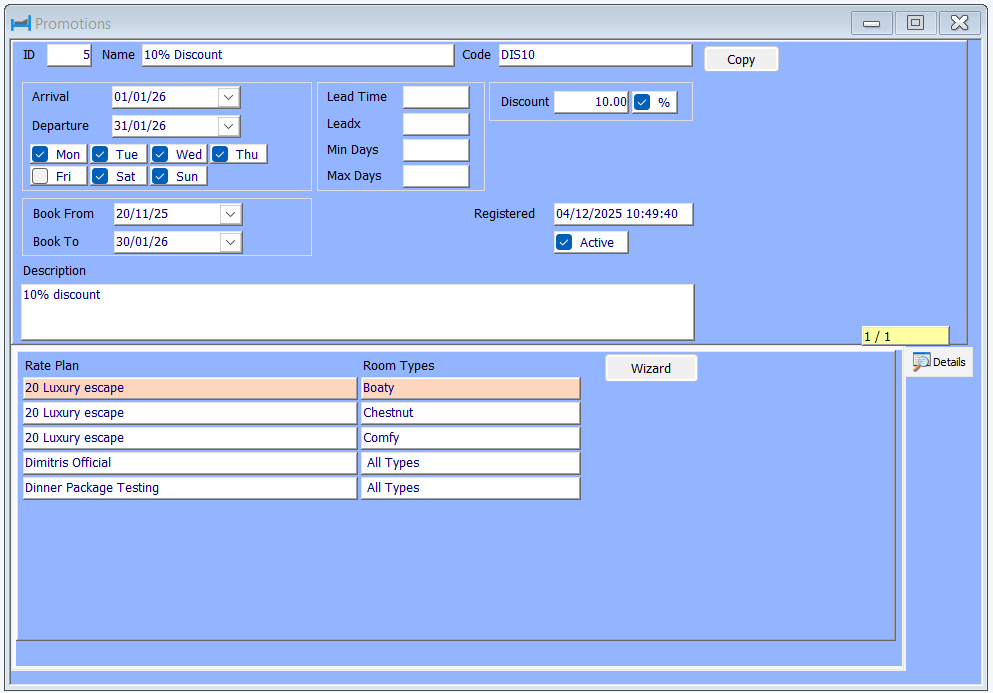
To search for an existing promotion a search wizard can be launched by double clicking the Name field.
The fields in the upper part of above screen include:
- ID: automatically generated promotion ID on initial save
- Name: the name of the promotion as it will appear in reports
- Code: the code to be used to apply the promotion
- Arrival: when bookings are allowed to arrive from
- Departure: the maximum possible departure date for reservations
- Days of Week: allows for when the promotion is available e,g, Sunday - Thursday **please see more details below on Promotion Flex options**
- Book From: the earliest date the promotion can be booked from
- Book To: the latest date the promotion can be booked to
- Lead Time: the minimum number of days in advance the promotion can be booked e.g. booking must be 7-days before arrival
- LeadX: the maximum number of days into the future the promotion can be booked. Lead Time and LeadX can be used together to create a time spa. e.g. Lead is set to 7 and LeadX to 30 means the booking must be a minimum of 7-days and maximum of 30-day in advance
- Min Days: the minimum number of nights that must be booked for he promotion to apply
- Max Days: the maximum number of nights that can be booked
- Discount: the discount value. Please note the % field must be ticked to differentiate a £value versus % discount
- Registered: automatically populated on first save
- Active: to define if the promotion is active or not
- Description: an internal description of what the promotion offers
The Copy button allows for the duplication of the promotion.
The lower part of above screen is controlled via the Wizard button and allows for the linking of promotions to rate plans and room types
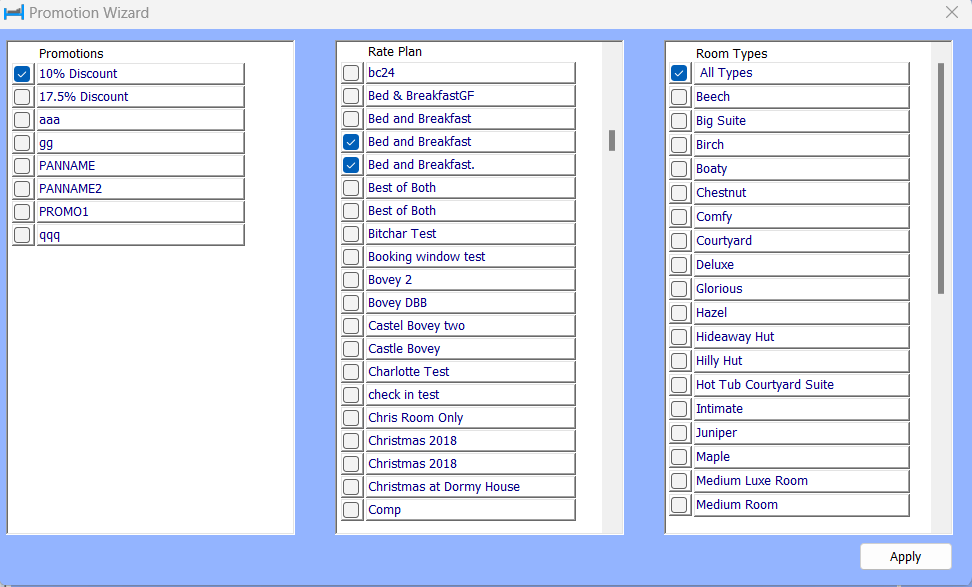
- A single or multiple promotions can be selected on the left hand side of the screen
- A single or multiple rate plans can be selected from the central panel
- Promotions can be applied to either All Types i.e. all room types or selected room types
Pressing the Apply button will confirm the choices and be reflected in the lower panel of the Promotions screen
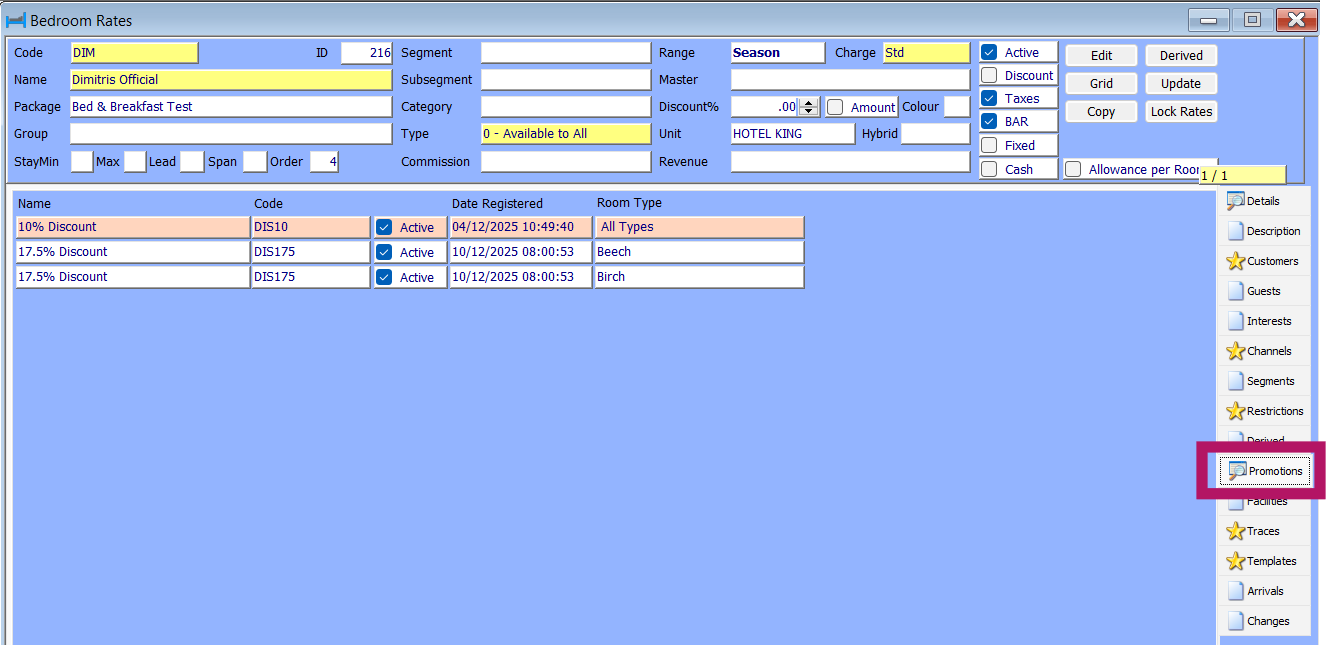
When a promotion has been applied to a rate plan the details of this are visible in the Promotions tab via Sales > Rate Plans
Promotion Flex
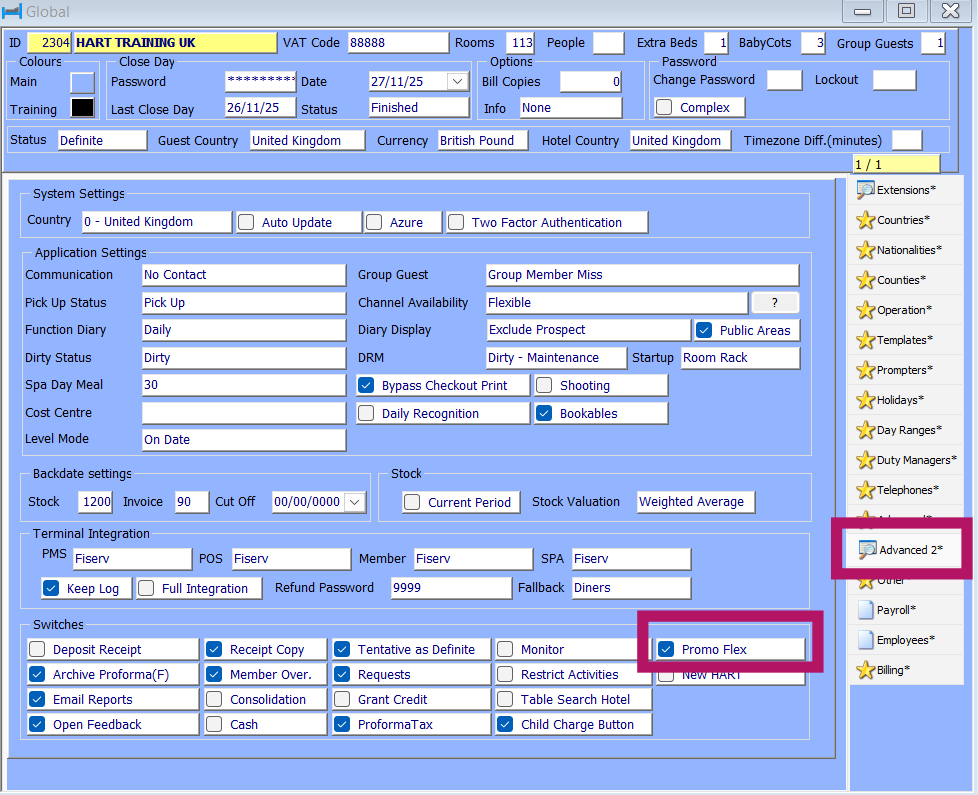
By default promotions can only be applied to reservations which fall within the day of week rules of the promotion. For instance if a promotion was set to run between Sunday & Thursday it could not be applied to a room staying between Thursday and Sunday.
This can be made flexible by ticking the Promo Flex option within Configuration > Global > Advanced2 as detailed below.
Applying a Promotion to a room booking
Initially a rate plan should be selected for a room stay in the usual way. Following which the Promo button should be pressed and the Promo Code input. If the Promo Code is valid authorisation will need to be supplied to apply the discount. For further information on setting up authorisations please contact HART Support.
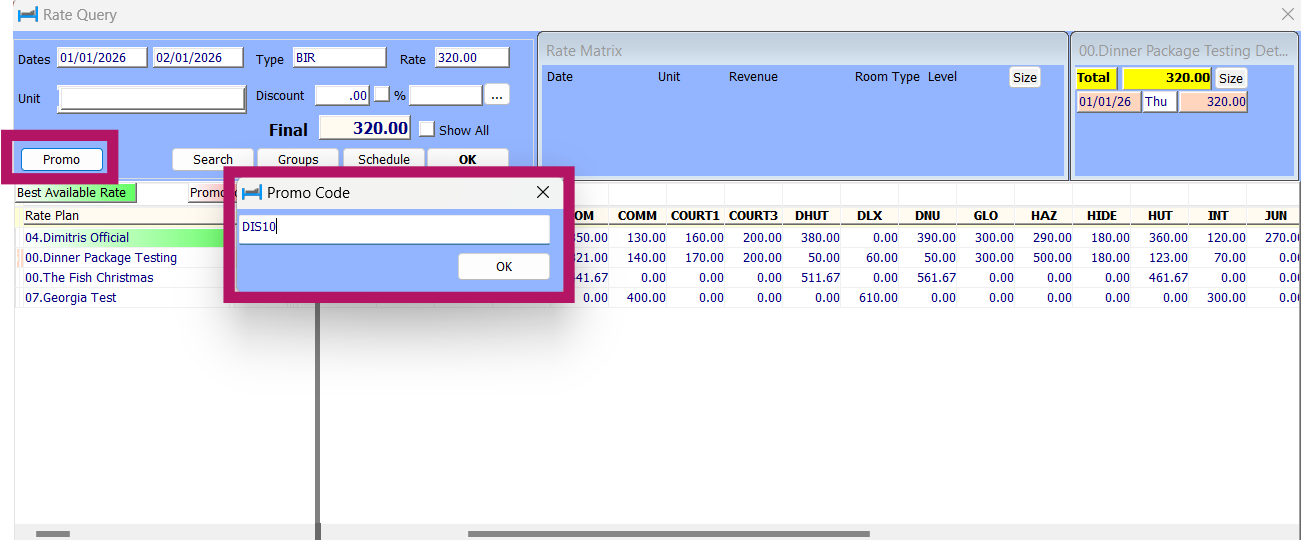
The rate will subsequently discounted by the applicable amount under the promotion
A record of the promotion being applied are visible in the Rates tab of the room reservation screen along with any changes made such as removals of a promotion from the reservation
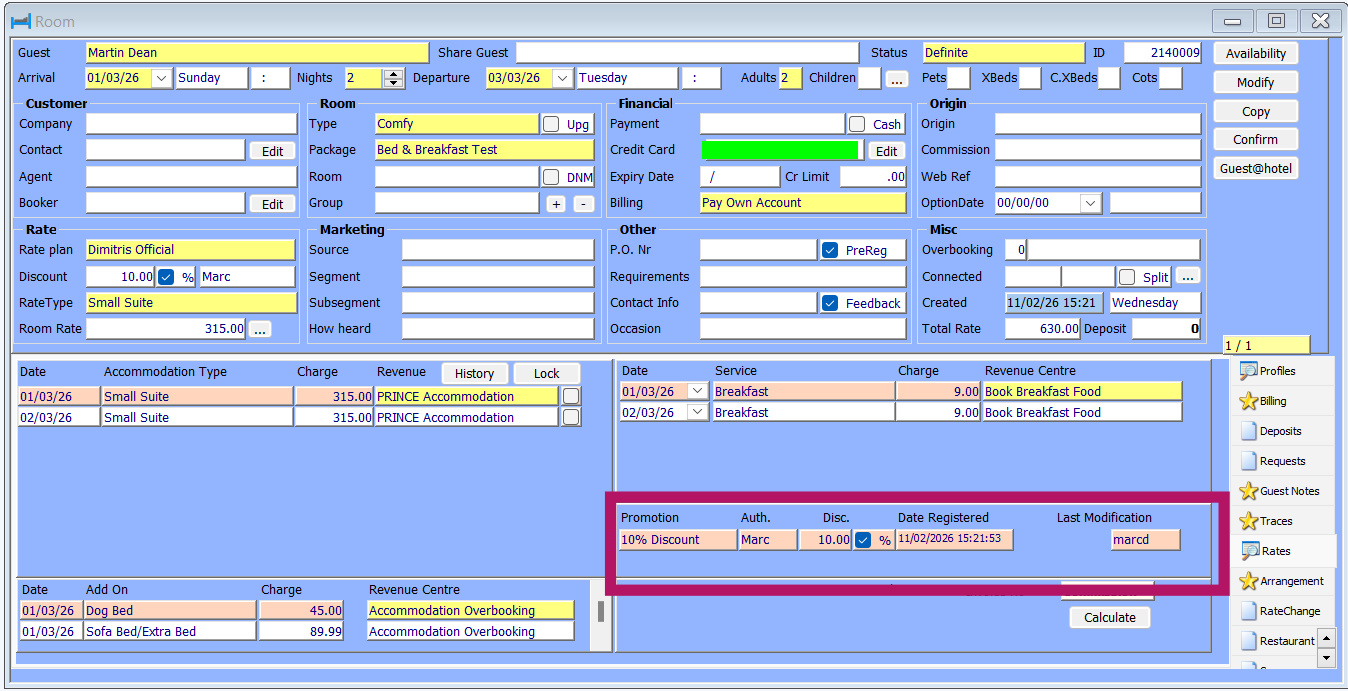
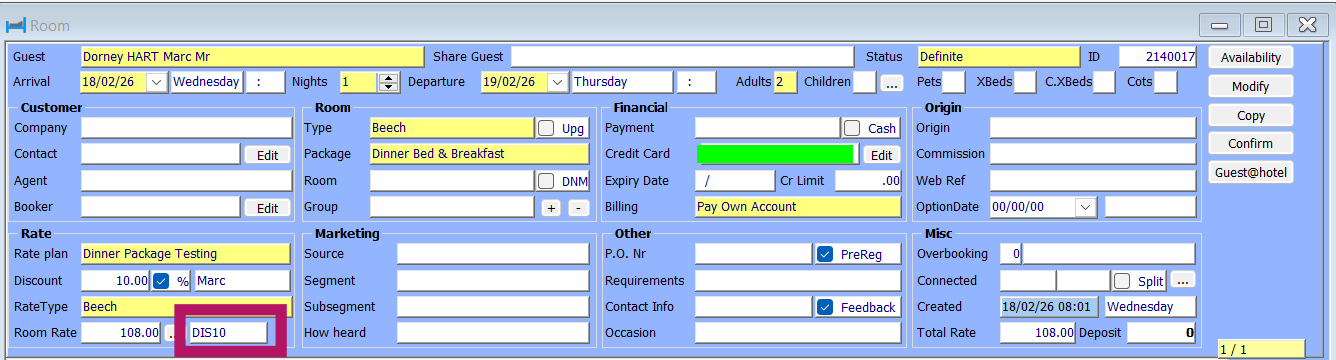
The existence of a Promotion against the rate is also indicated in the upper part of the reservation. It's important to take note of this when looking at reservation amendments and ensuring the promotion will be relevant to any date/stay changes
Reporting on Promotions
All Promotions report is available via Reports > Sales > Promotions

- Bookings: can be viewed either Stay dates based on the arrival date of the reservations or Booked looking at when the reservation was made
- Promotions: shows active promotions during the given date range
Was this article helpful?
That’s Great!
Thank you for your feedback
Sorry! We couldn't be helpful
Thank you for your feedback
Feedback sent
We appreciate your effort and will try to fix the article