Guest Feedback Questionnaires allow guests to rate their experience after their visit. Responses can be automatically emailed to guests and analysed within HART Cloud to help monitor guest satisfaction and service quality. At the end of this article you will be able to;
- Create a questionnaire
- Configure notification emails
- Create questionnaire questions
- Configure guest and internal email templates
- Analyse guest feedback
Before setting this up please contact the HART Support to discuss using this feature.
Create the Questionnaire Configuration
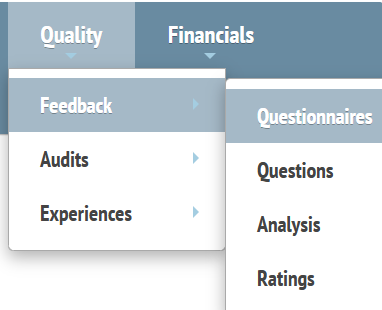
In the cloud Navigate to: Quality > Feedback> Questionnaire
Click > Add New Record 
| Field | Description | Example |
| Booking | Select the booking type | Room = Hotel Bookings, Tables = Restaurant Bookings |
| Name | Free type the name of the questionnaire | Guest Stay Survey |
| Email Subject | Subject line to guests | We'd Love Your Feedback |
| Unit | If you are not using units, leave blank | - |
| Send | Number of days after guest departure | 1 |
| Stars | Rating Scale (5 recommended) | 5 |
| Template | Leave Blank | - |
| IR% (Instant Reply Threshold) | This allows low-scoring feedback to be identified and actioned promptly. For entering 50% will send an Instant Reply email when the guest's average rating is 50% or below. | 50% |
| TA%: (Target Achieved Threshold) | Target rating outcome | 90% |
| Remarks | Enables guests comments | ✓ |
Click Save Changes!
We Recommend:
- 5-start ratings
- Sending the questionnaire 1 day after departure
- Setting IR% to 50%
Next with the questionnaire highlighted in the top window, under the email tab click Add New Record.

Enter each email address that should receive notifications when a guest sends feedback.
Click Add New Record button for each entry.
Choose one of the following notification types from the dropdown list.
| Everything | Receives every notification and the scorecard |
| Feedback Submitted | Receives feedback submissions only |
| Scorecard | Receives the daily summary only |
Tip: Add more than one recipient to ensure feedback is always monitored!
IR Emails Tab.
Click Add New Record - type the internal emails that you wish to that will receive the IR emails (see IR%) above, Save changes! Repeat for each email address added.

Creating Questions
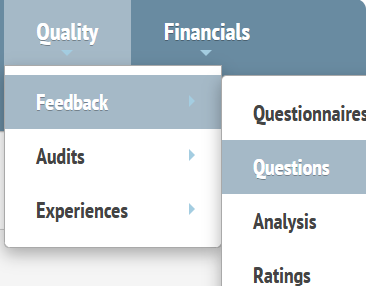
Quality > Feedback > Questions
Select the questionnaire name from the drop down in the select questionnaire field.

Press the Add a new Record button and Add;
| Order | The order at which the questions are displayed on the feedback form. |
| Question | Free type the questions as you wish them to appear in the feedback form. |
| Type | Each question can be one of the following types:
|
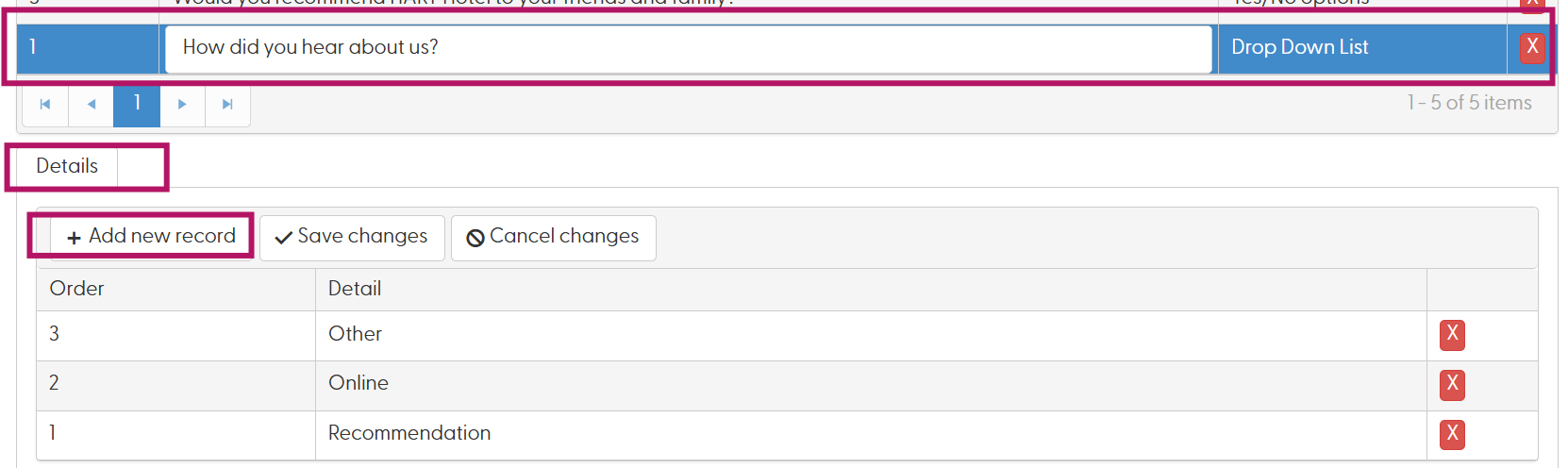
The drop down 'list' is created in the details tab section at the bottom. Ensure you have the question highlighted in the top window.
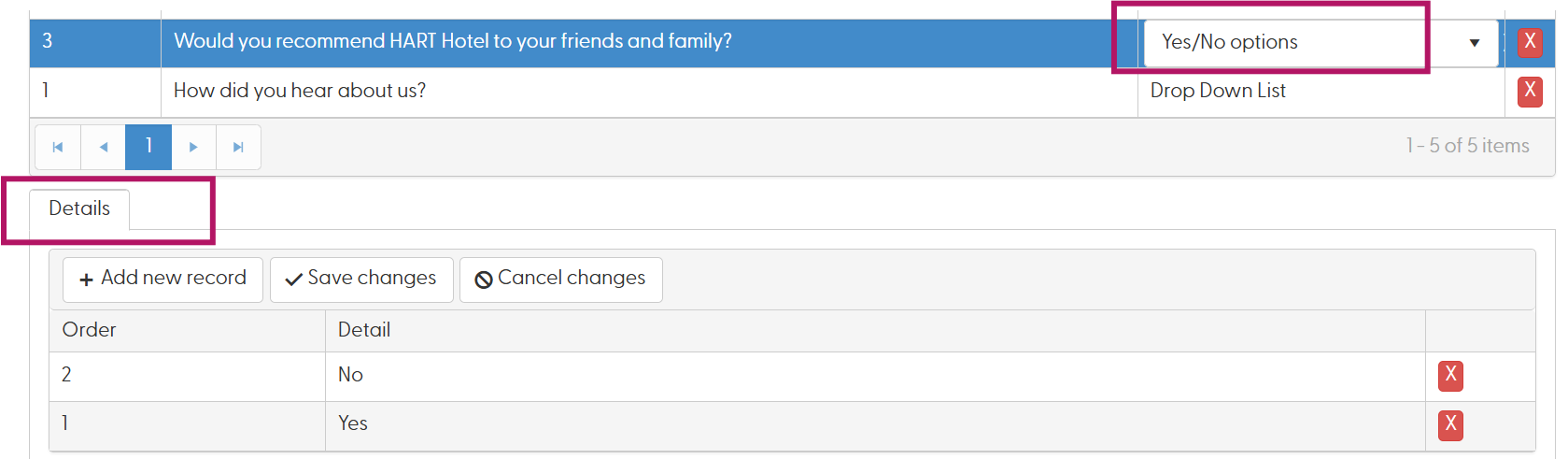
Yes/No Option: This option creates questions that can be answered with a Yes or No answer, e.g. Would you recommend the property to a friend/colleague?
Ensure you have the question highlighted in the top window and under the details tab add Yes and No
Remember to save your changes once this has all been done.
Create the Guest feedback template.
Navigate to Hotel > Templates > Feedback
Please note this is the one the guest receives and uses the below tags
$$Surname$$ or $$FirstName$$
(Despite being different, on this occasion they both produce the title and surname of the customer)
Please note as this information comes from the PMS, it is important to make sure that the Title is a compulsory field on the guest profile.
A specific tag, named $$Link$$ automatically produces the link to the feedback form.
Create the Internal emails
Navigate to Configuration->Templates->Feedback Return Email.
The available Smart tags are;
| $$Name$$ | Title & Surname |
| $$Arrival$$ | Arrival Date |
| $$Rating$$ | Overall Rating % |
| $$Notes$$ | Guest comments |
| $$Link$$ | A link to the full feedback form to view |
Additional tags for internal emails
All the people who are added in the emails section and have ‘Everything’ or ‘Scorecard’ Notification can receive one email per day summarising all the feedback submitted in the last 24 hours (regardless of the visit date).
This template is created under Configuration >Templates, please select one of the Customisable Templates and rename this Feedback Template.
The available smart tags are:
| $$HotelName$$ | Hotel Name |
| $$Date$$ | Date |
| $$Forms$$ | Number of Feedbacks Submitted |
| $$Rating$$ | Average Rating for the Day |
| $$Week$$ | Weekly Average Rating |
| $$Month$$ | Monthly Average Rating |
| $$Remarks$$ | Guest Remarks |
To Note:
The weekly and monthly average ratings start on a Monday.
Analysis the Feedback
There are two options to analyse feedback. Navigate to Quality > Feedback > Analysis.
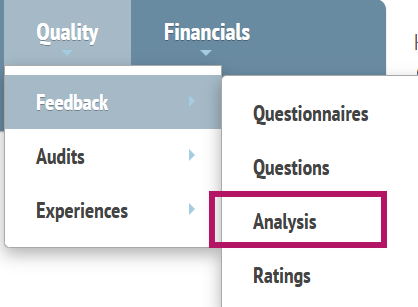
Analysis: This shows a graph displaying the ratings per day as well as the average per questionnaire (in case you have more than one questionnaire).
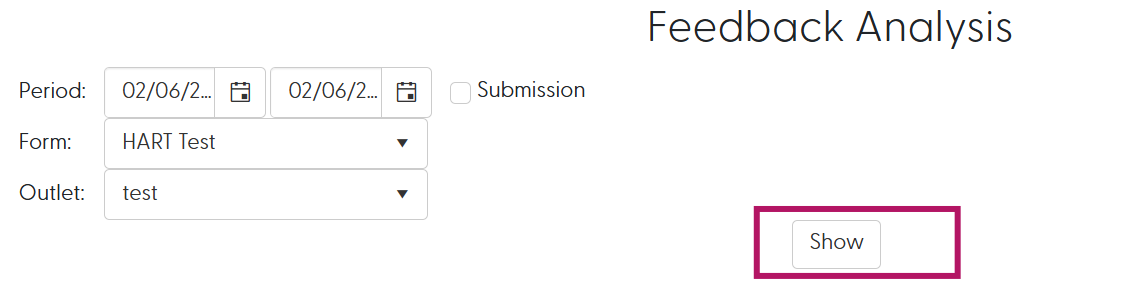
| Period | Select the dates you want to see |
| Submission | Tick if the analysis is required by submission date, if this is left unticked the analysis will be by visit date. |
| Form | Choose the questionnaire you would like to analyse. |
Once the Show button is pressed, a graph is produced;
- Hover over points to see exact ratings.
- Hide questionnaires by clicking the legend.
- Compare multiple questionnaires on one graph.
Quality > Feedback > Ratings
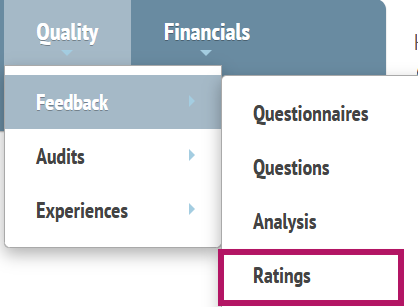
This shows the individual feedback forms
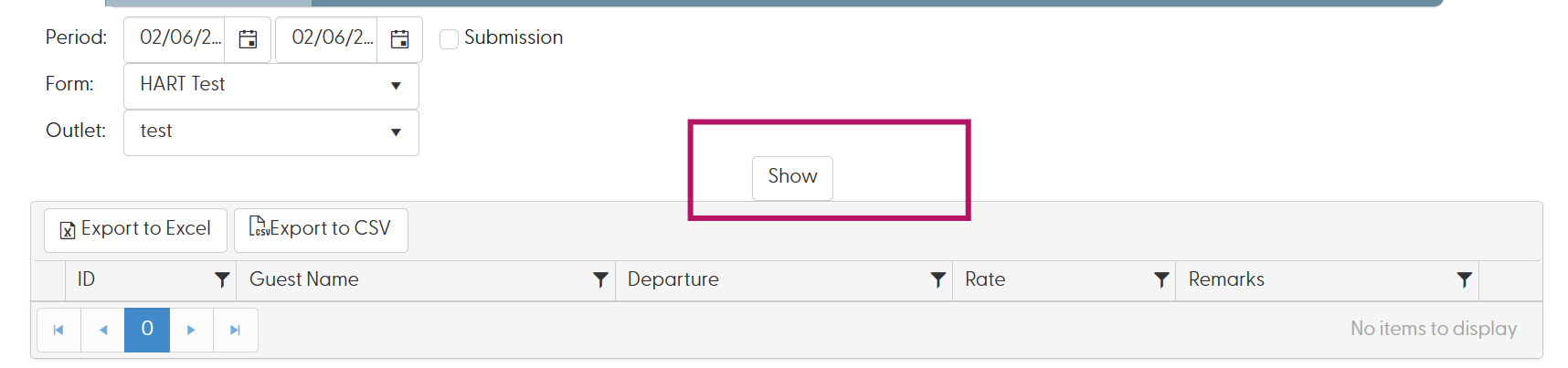
View the details of the ratings: By clicking on the arrow next to the booking ID, all the ratings given by the customer are displayed. Clicking on the arrow again closes the detailed ratings.
You can also use the filter Icons to filter certain details, for example: clicking the filter of the Rate field allows you to specify numeric fields, if we wanted to see the ratings that are below 60%.
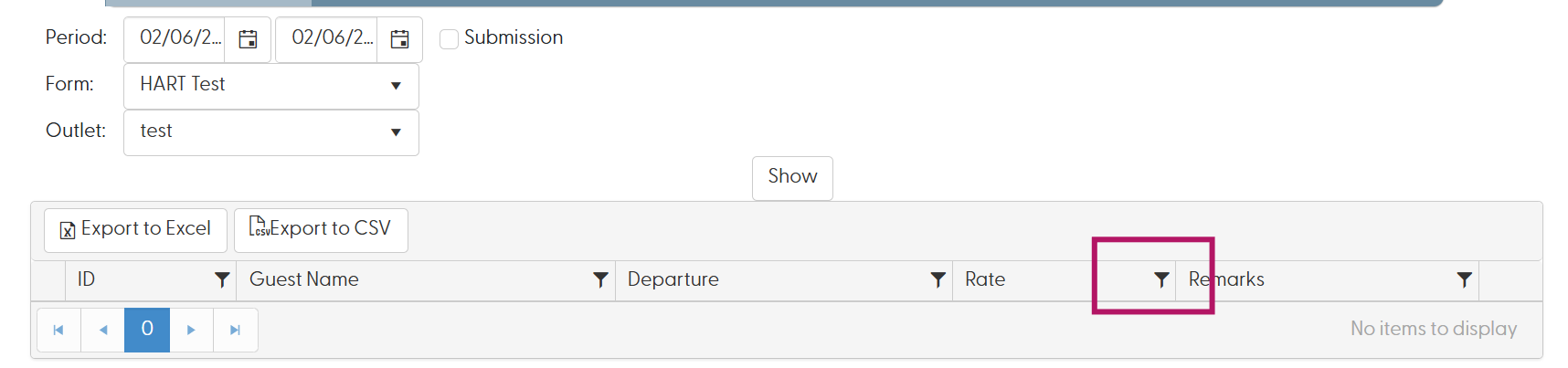
Docket: Clicking on the Docket button produces the actual bill of the person who submitted the feedback.
The close button returns to the data grid.
Troubleshooting
| Problem | Possible Cause | Solution |
|---|---|---|
| No emails sent | Template missing | Configure Feedback Template |
| Instant Reply not received | IR% too low/high | Review threshold |
| Guest received no survey | Send period incorrect | Check questionnaire settings |
| Questionnaire missing | Wrong booking type | Check Booking field |
Was this article helpful?
That’s Great!
Thank you for your feedback
Sorry! We couldn't be helpful
Thank you for your feedback
Feedback sent
We appreciate your effort and will try to fix the article