By the end of the guide you will be able to:
- Create a new voucher via the PMS
- Create complimentary/house vouchers
- Cancel/re-issue vouchers
- Check the validity and scope of a voucher
- Apply a voucher as a deposit or against a bill in the PMS & POS
Creating a new voucher via the PMS
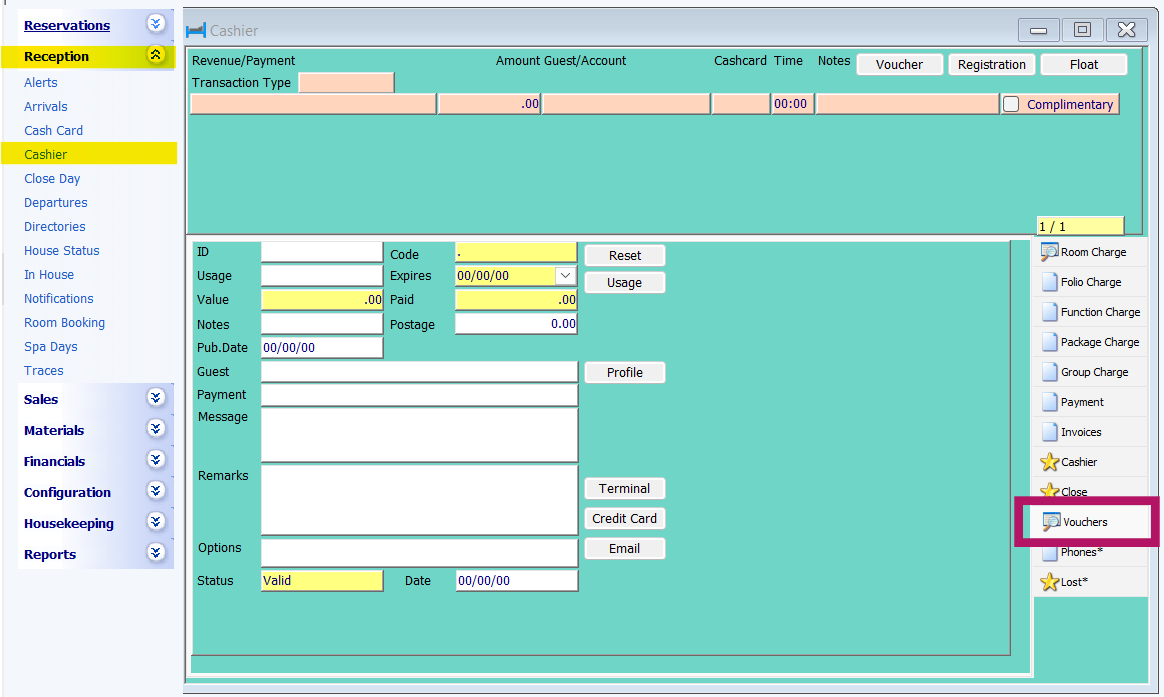
Voucher are can be created via Reception > Cashier > Vouchers followed by a right mouse click and Add Entry
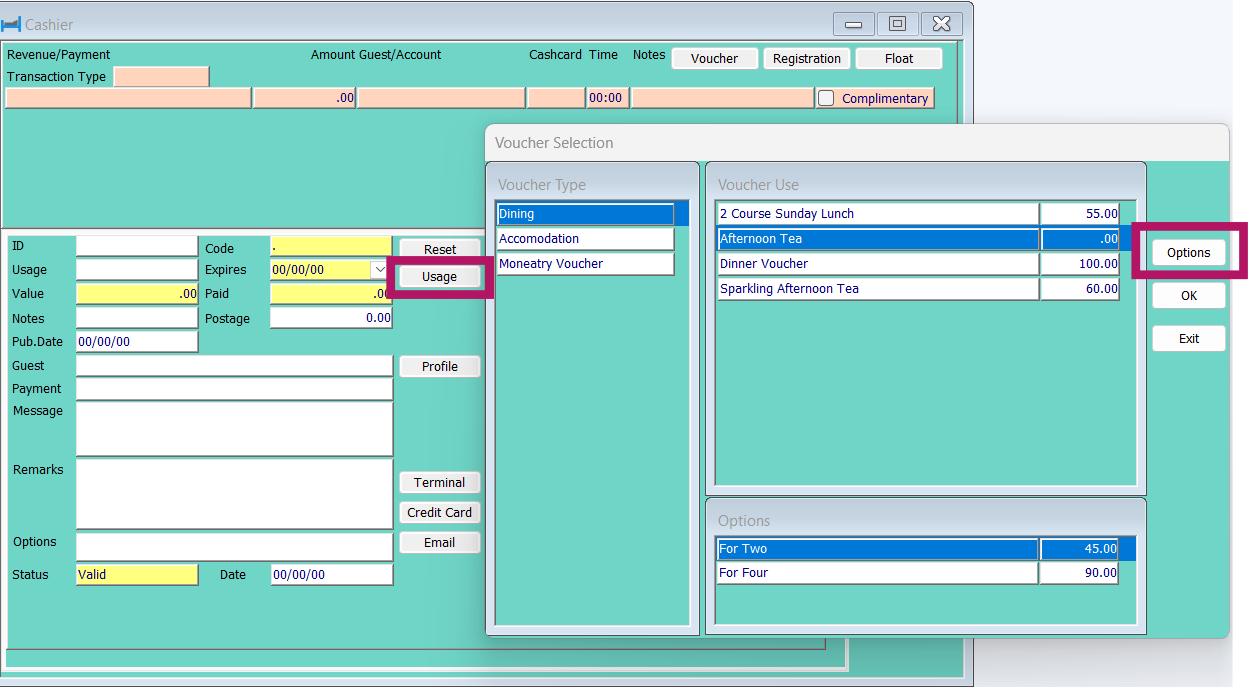
Once a blank voucher has been created the first step is to press the Usage button and select the voucher required. Please note certain vouchers have options and the Options button will need to be pressed to make a selection. In the example below the Afternoon Tea voucher has been selected and the Option 'For Two'
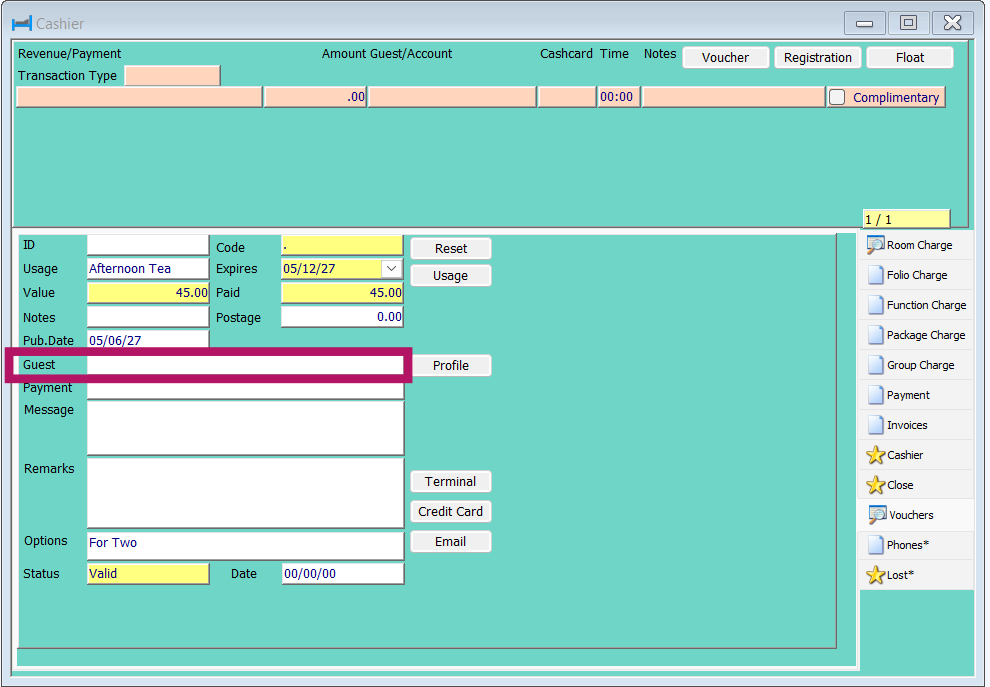
After a selection is made and confirmed via the OK button the voucher usage, option, expiry, value, amount paid and published date are automatically updated. The next step is to attach a guest to the voucher by double clicking in the Guest field. Please note these details should be the name of the Guest purchasing the voucher
Following this Remarks can be added which are internal notes whilst Messages will be added to the voucher copy and will be seen by the recipient. If the guest has opted for a physical voucher to be mailed to them the Postage value should be updated accordingly.
Taking Payment can be handled in the following ways:
- A manual payment is taken via cash/PDQ following which the Payment type (located under the Guest filed) should be updated with the method using the drop down
- If the purchaser is present and PDQ terminal integration exists then the Terminal button can be pressed to initiate the transaction which once complete will automatically update HART (only available for clients using terminal integration on FiServ Clover and Trust Payments)
- If the purchasers is calling to make a purchase then the Credit Card button should be pressed to complete the transaction
Following this the voucher will be automatically saved and a Voucher Number issued making it is possible to press the email button to generate the e-voucher template and send this to the guest.
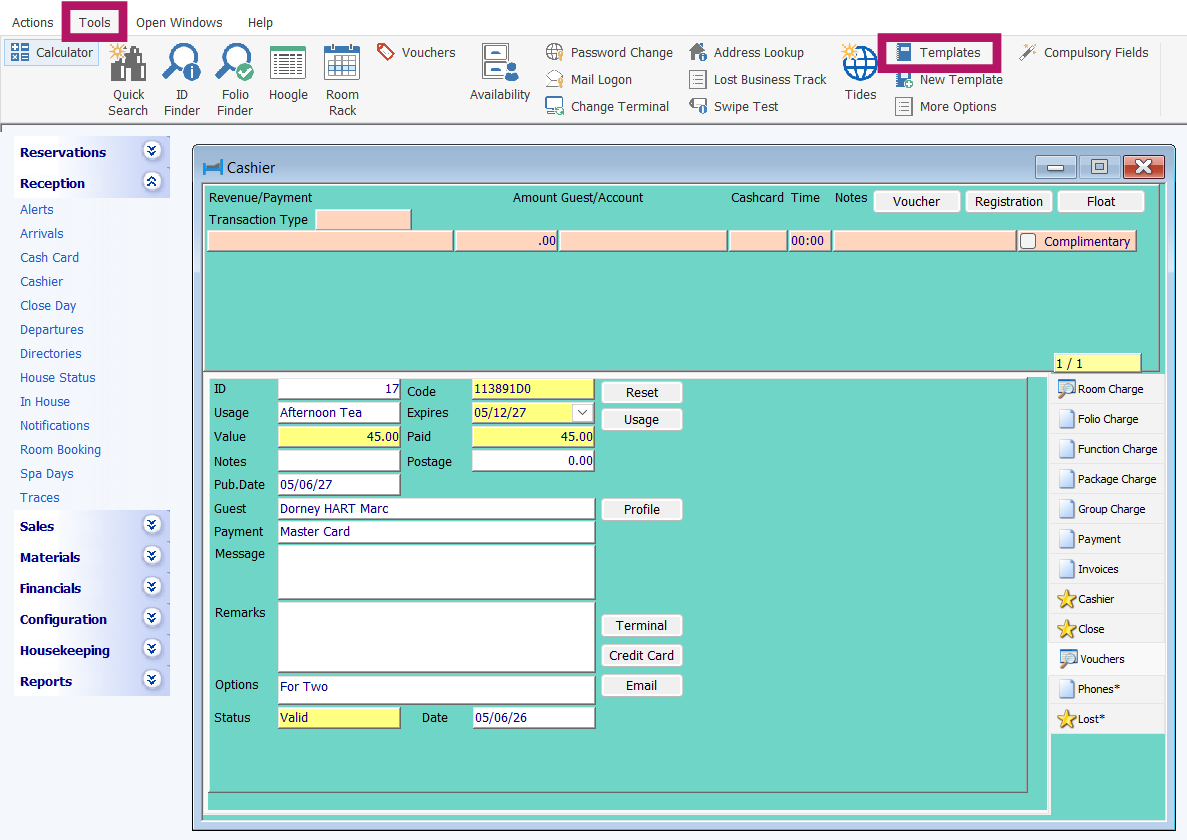
If a postal voucher has been selected then the voucher will need to be merged via Tools > Templates before being printed and sent
Issuing Complimentary/House Vouchers
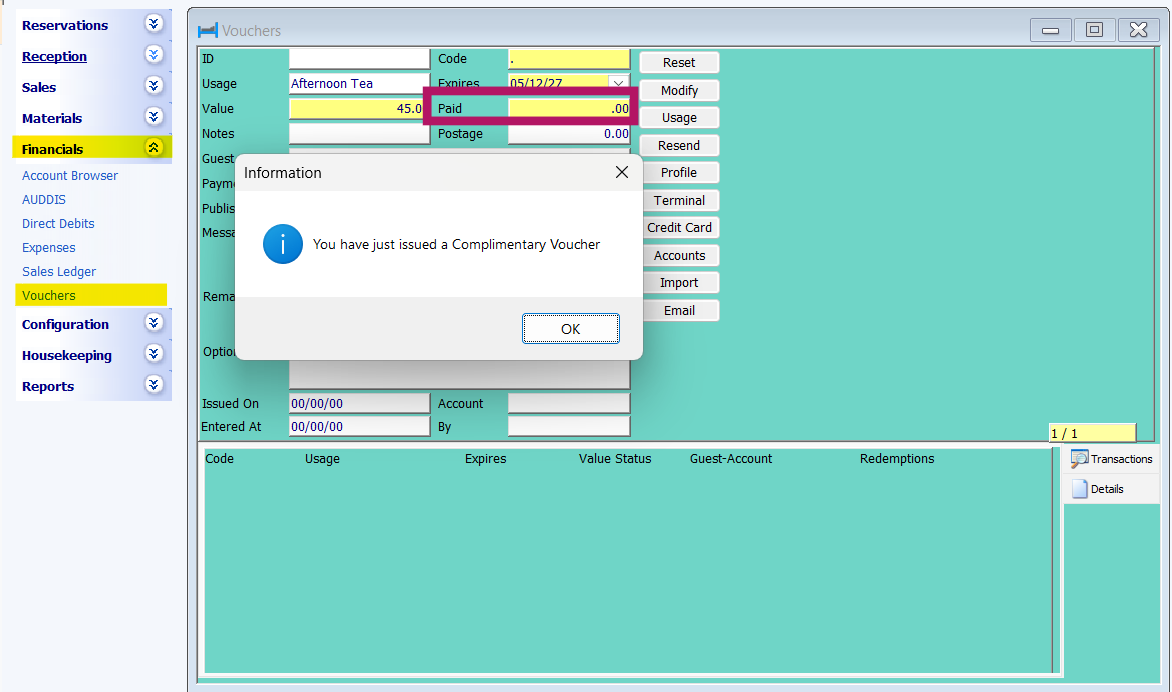
To allow for a level of control on which users can create complimentary/house vouchers, they can only be issued via Financials > Vouchers. The same process as above should be followed however the Paid field updated to 0.00. Please note, the Value field should not be updated as this then allows for the reporting of both the face and actual values of vouchers.
When a Complimentary voucher is saved a confirmation message as below is displayed
Cancelling/Reissuing vouchers
Financials > Vouchers is also the location that management of vouchers can be made. In this area the expiry date of a voucher can be extended and via the Modify button a voucher cancelled or re-issued. Please note where a voucher has already expired then a new voucher will be issued.
Check the validity and scope of a voucher
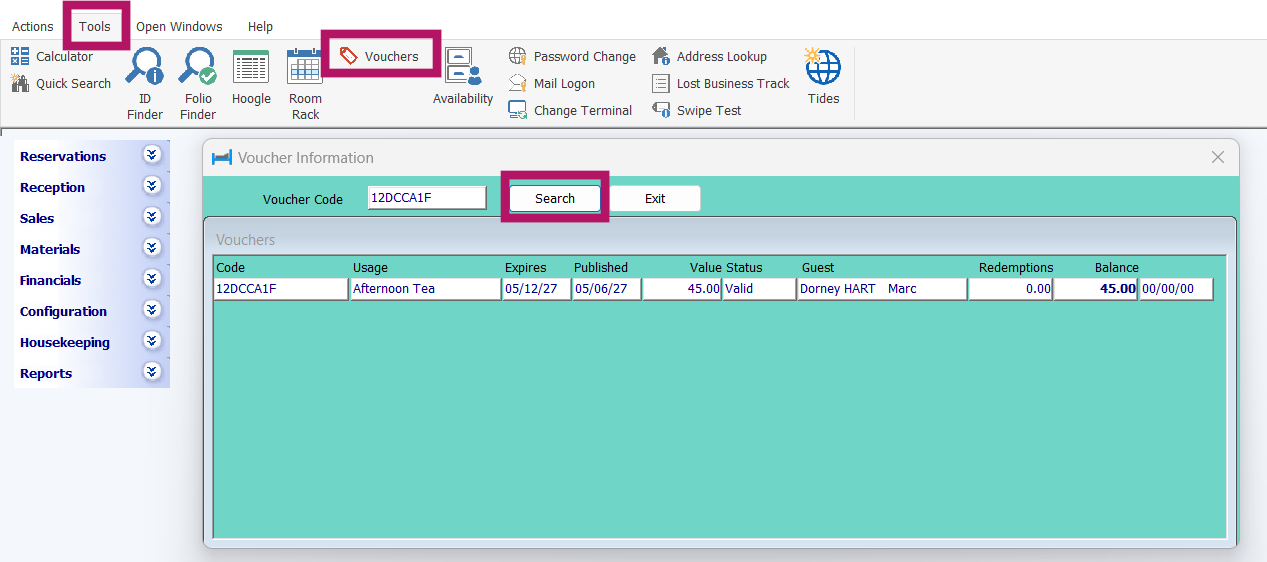
Via Tools > Vouchers a search tool is launched either the whole or partial voucher number can be entered and and relevant voucher(s) are returned with a snapshot of their key information
Apply a voucher as a deposit or against a bill in the PMS & POS
Vouchers should be applied in the same way as e.g. Cash payments are applied to reservations and can be used across all types of bookings as deposits or as bills against final payments. In each property a voucher payment type (typically called 'Voucher') is created however please clarify with the finance team the correct payment method to be used for internally issued vouchers
Please note: complimentary/house vouchers should only be used as final payment vouchers and not as deposits.
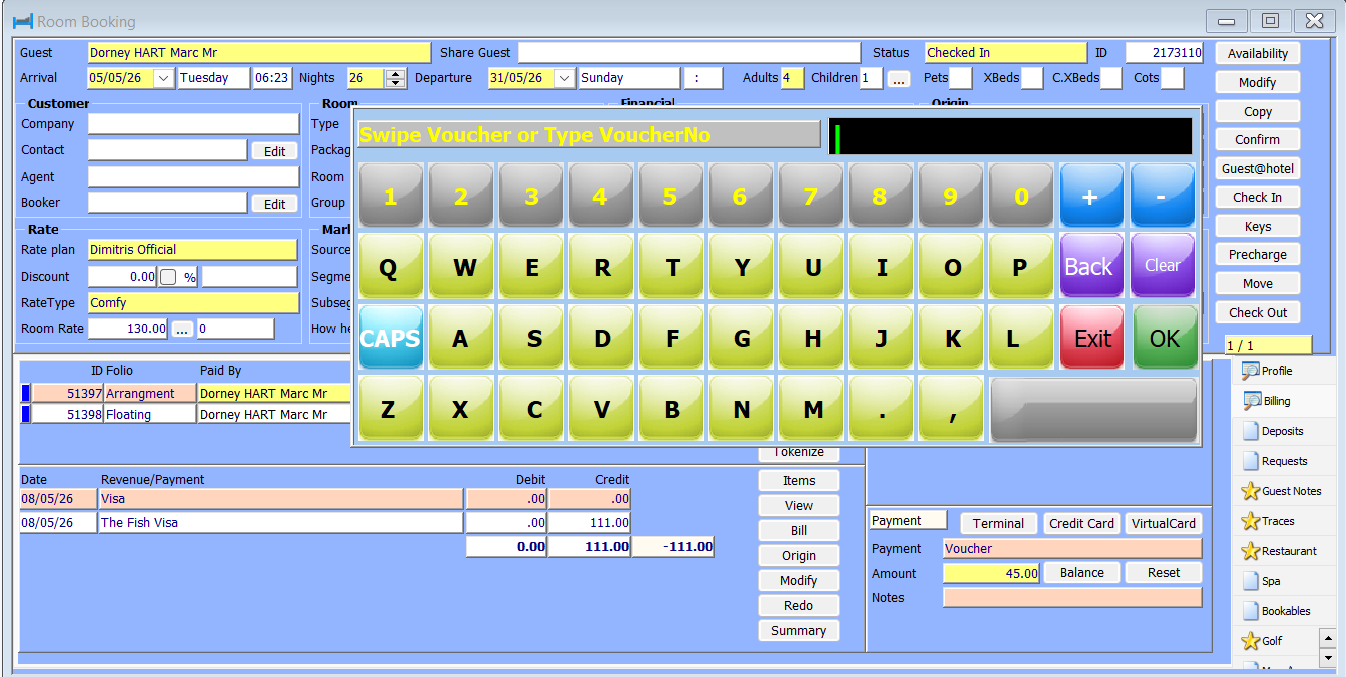
When applying the voucher to a reservation in the PMS the voucher number must be entered. Please note these should never contain dashes or spaces and if these exists on the printed voucher they are removed as part of the import to HART
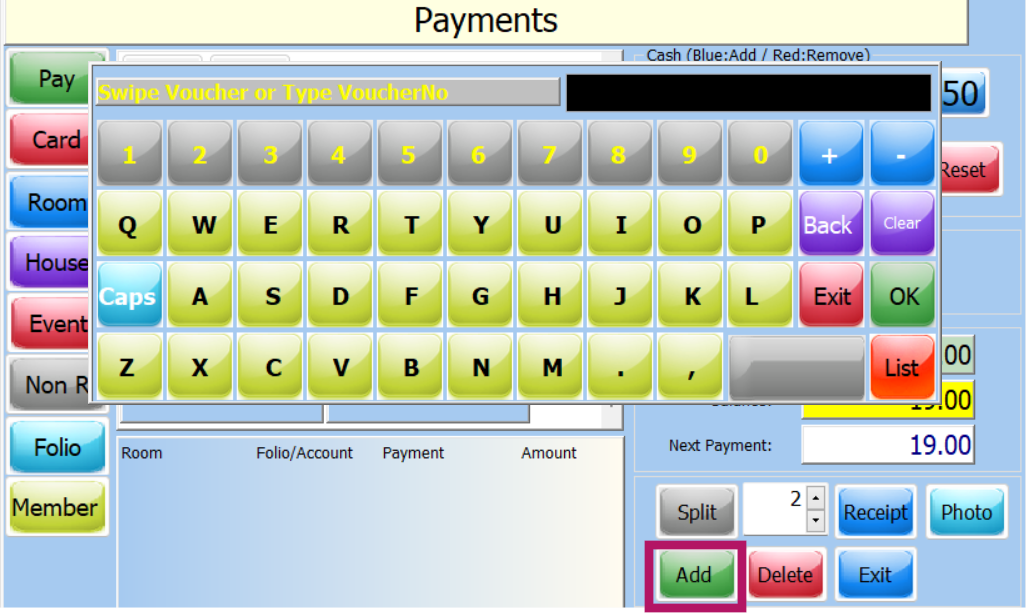
Via the POS once the Payment button has been pressed the Pay option should be selected and the voucher payment method selected. After pressing the Add button the same box will appear requesting the voucher code
For further assistance or guidance please contact HART Support
Was this article helpful?
That’s Great!
Thank you for your feedback
Sorry! We couldn't be helpful
Thank you for your feedback
Feedback sent
We appreciate your effort and will try to fix the article